When should you read this?
You already pushed api:1.0.0 to Amazon ECR. The image is versioned and private. What is missing is a runtime that pulls it and keeps the container up without SSH on a box. ECS Fargate runs the task for you — no EC2 instance to patch for the workload itself.
Part 2 of 4 (ECR -> Fargate -> ALB HTTPS -> Actions). This post ends when one Fargate task serves Spring Boot on port 8080 and curl against its public IP succeeds. Next (part 3): put an Application Load Balancer with HTTPS in front — planned slug put-alb-https-in-front-of-fargate-spring-boot.
It follows the one-box EC2 arc (Nginx + Spring, Actions to EC2, health gate). Those posts ship a jar to one host. Here the next step is run the ECR image on Fargate.
What you are building
ECR  api:1.0.0
  -> task definition (Fargate, awsvpc, port 8080)
  -> ECS service (desired count 1)
  -> public IP :8080  ->  curl /actuator/health
Later: ALB :443  (part 3)
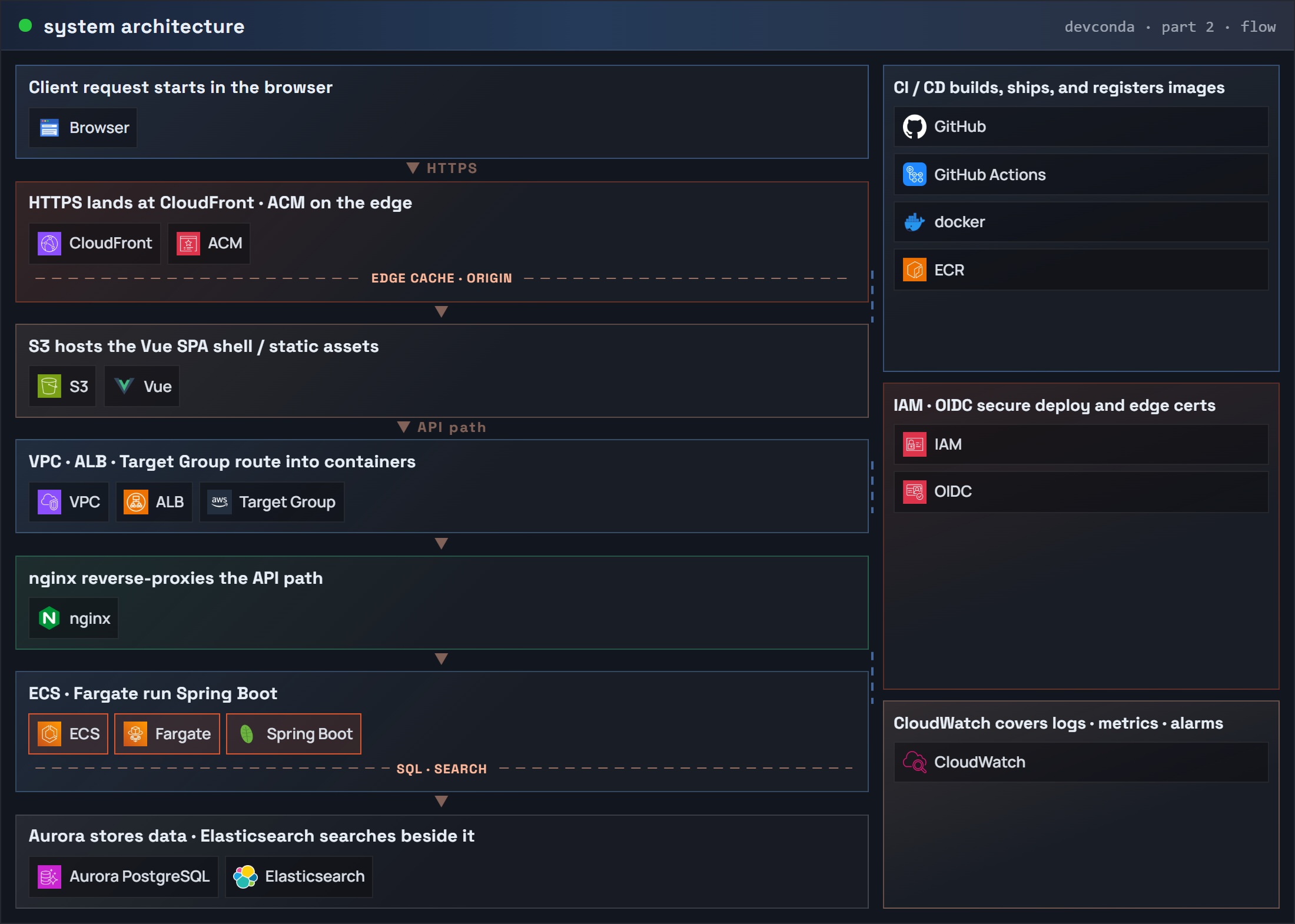
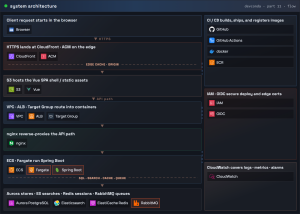
Same account and region as part 1 (ap-northeast-2 in examples). Keep repository name api and tag 1.0.0 — do not switch to floating latest. The first figure shows ECR, the task, and today’s smoke-test path before ALB.
Part 2: system architecture (request flow) – ECS / Fargate / Spring Boot
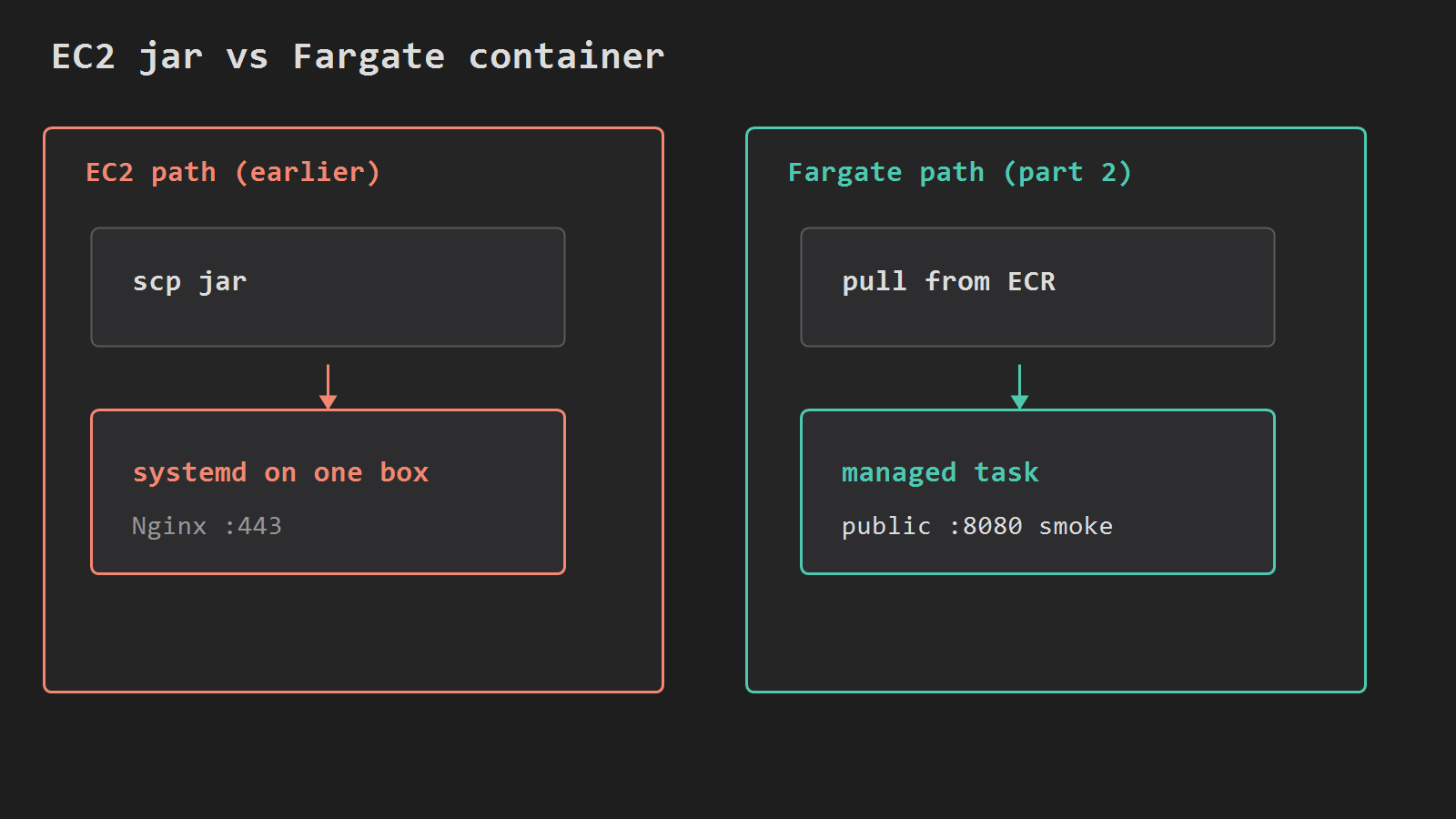
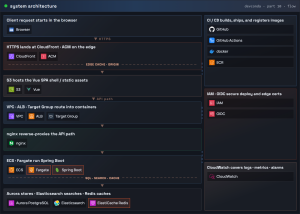
The second figure contrasts the EC2 jar path with a Fargate task pulling from ECR.
Before you start
Confirm the image from part 1:
# List images in ECR repo api and show whether tag 1.0.0 exists
REGION=ap-northeast-2
aws ecr describe-images \
  --repository-name api \
  --region $REGION \
  --query 'imageDetails[?contains(imageTags, `1.0.0`)].{tag:imageTags[0],pushed:imagePushedAt}' \
  --output table
Set shell variables once — every command below reuses them:
# Read the current AWS account ID from STS
ACCOUNT=$(aws sts get-caller-identity --query Account --output text)
REGION=ap-northeast-2
# Full ECR image URI (registry + repo + tag) used by the task definition
IMAGE=$ACCOUNT.dkr.ecr.$REGION.amazonaws.com/api:1.0.0
CLUSTER=api
If describe-images shows no 1.0.0, finish part 1 before continuing.
Cluster and logs
Create a cluster and a CloudWatch log group for container stdout:
# Create an ECS cluster named $CLUSTER (container grouping)
aws ecs create-cluster --cluster-name $CLUSTER --region $REGION

# Create CloudWatch Logs group for container stdout (/ecs/api)
aws logs create-log-group --log-group-name /ecs/api --region $REGION
CreateCluster is idempotent enough for a tutorial — a second run returns the same cluster. If create-log-group fails with ResourceAlreadyExistsException, the group is already there.
Task execution role
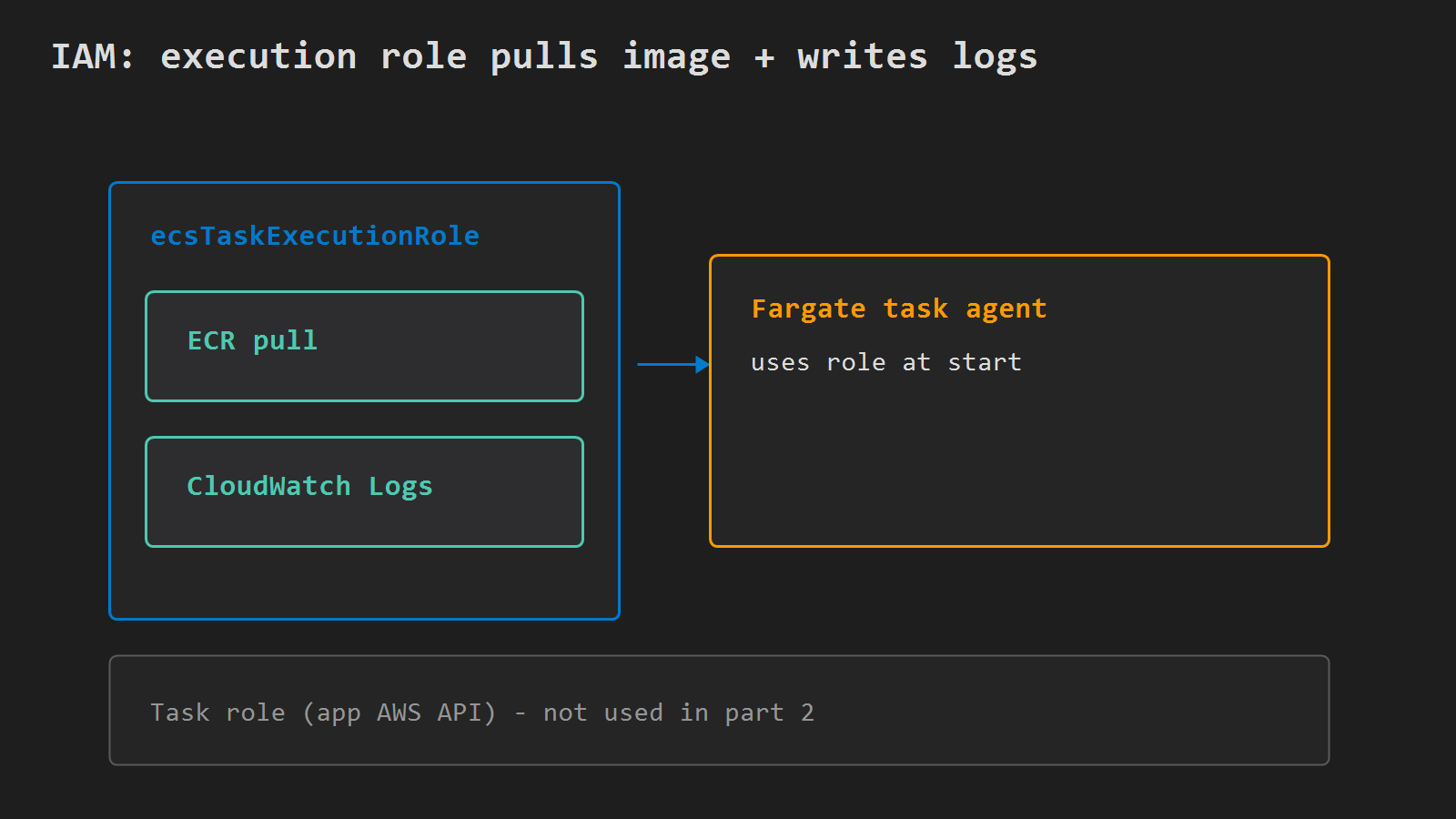
Fargate needs an execution role so the agent can pull from ECR and write logs. One role per account is typical.
Trust policy (ecs-trust.json):
{
  "Version": "2012-10-17",
  "Statement": [
    {
      "Effect": "Allow",
      "Principal": { "Service": "ecs-tasks.amazonaws.com" },
      "Action": "sts:AssumeRole"
    }
  ]
}
Create the role and attach the AWS managed policy:
# Create IAM role ecsTaskExecutionRole that ECS tasks can assume
aws iam create-role \
  --role-name ecsTaskExecutionRole \
  --assume-role-policy-document file://ecs-trust.json

# Attach managed policy: pull from ECR + write CloudWatch Logs
aws iam attach-role-policy \
  --role-name ecsTaskExecutionRole \
  --policy-arn arn:aws:iam::aws:policy/service-role/AmazonECSTaskExecutionRolePolicy
If the role already exists, skip create-role and confirm the managed policy is attached. Save the ARN:
# Build the execution role ARN for task-def.json
EXEC_ROLE=arn:aws:iam::$ACCOUNT:role/ecsTaskExecutionRole
CannotPullContainerError on a new task usually means wrong image URI, missing execution role, or the role lacks ECR pull rights — not a Spring bug.
The role figure labels execution role vs task role (unused in this part).
Network and security group
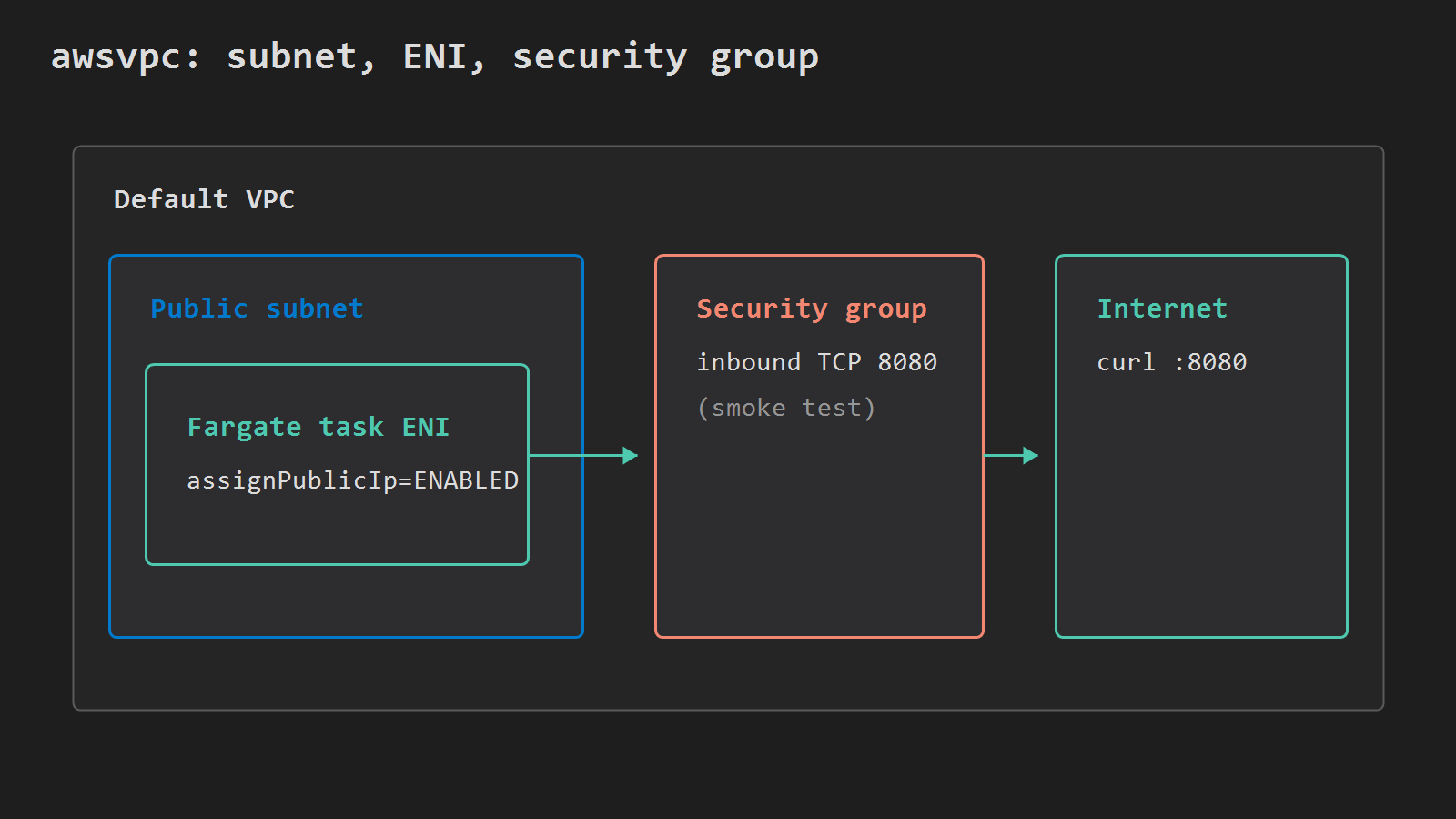
Fargate tasks use awsvpc — each task gets its own elastic network interface. For this smoke test, place the task in a public subnet with assignPublicIp=ENABLED so you can curl port 8080 directly. Part 3 moves TLS to an ALB and tightens inbound access.
Pick the default VPC and one of its subnets:
# Find the default VPC ID in this region
VPC_ID=$(aws ec2 describe-vpcs \
  --filters Name=isDefault,Values=true \
  --query 'Vpcs[0].VpcId' --output text --region $REGION)

# Pick one subnet in that VPC for the Fargate task ENI
SUBNET=$(aws ec2 describe-subnets \
  --filters Name=vpc-id,Values=$VPC_ID \
  --query 'Subnets[0].SubnetId' --output text --region $REGION)
Create a security group that allows inbound 8080 (temporary for part 2):
# Create a security group for the Fargate smoke test
SG_ID=$(aws ec2 create-security-group \
  --group-name api-fargate-sg \
  --description "Fargate api smoke test" \
  --vpc-id $VPC_ID \
  --region $REGION \
  --query GroupId --output text)

# Allow inbound TCP 8080 from anywhere (temporary; tighten in part 3)
aws ec2 authorize-security-group-ingress \
  --group-id $SG_ID \
  --protocol tcp --port 8080 --cidr 0.0.0.0/0 \
  --region $REGION
If create-security-group fails because the name exists, look up the existing group id in the console or with describe-security-groups. Connection timeouts from your laptop with a running task usually mean wrong security group, task in a private subnet without a public IP, or the app never bound to 8080.
The network figure shows VPC, public subnet, ENI, security group, and public IP.
Register the task definition
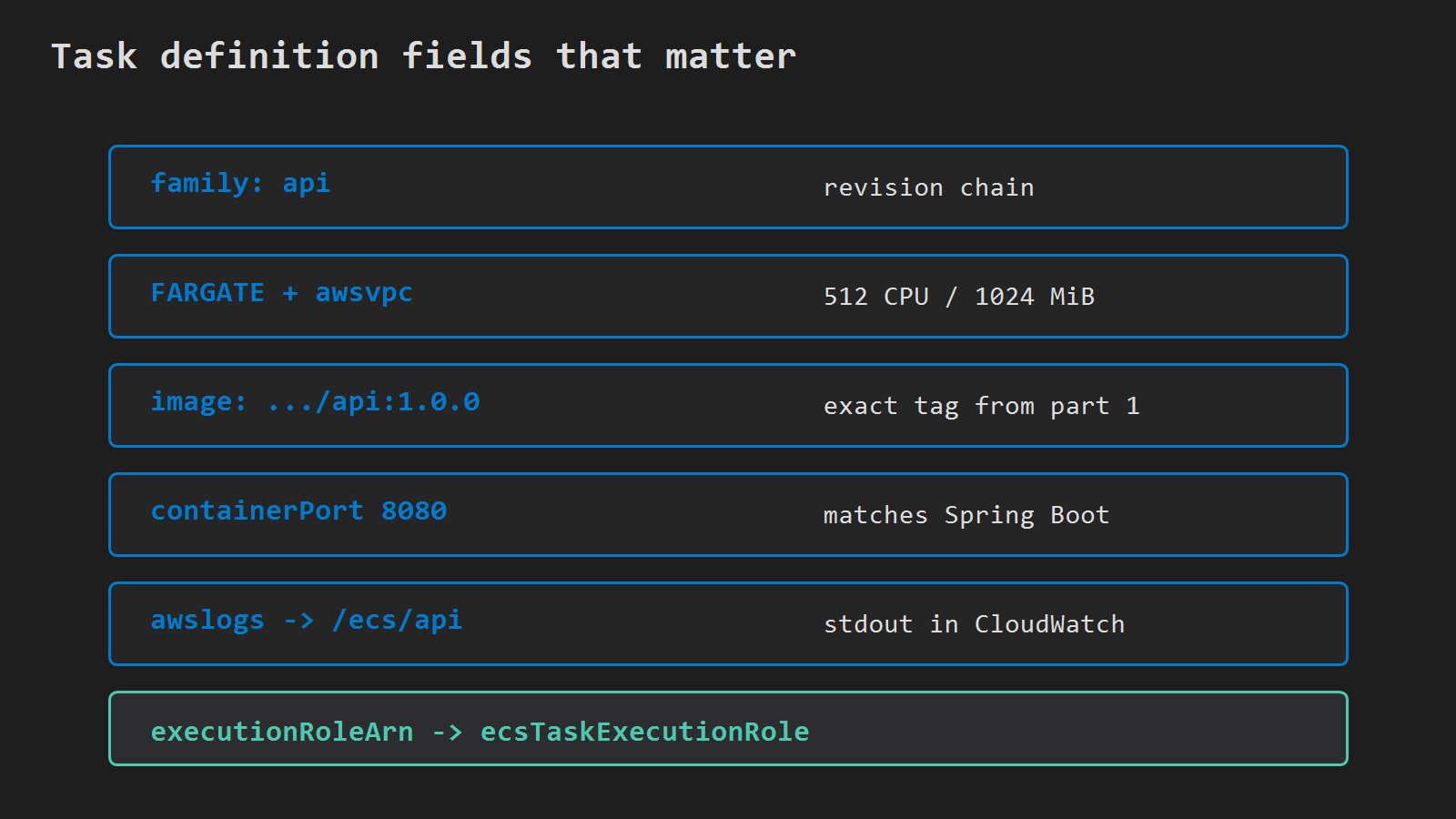
Fargate requires networkMode: awsvpc, requiresCompatibilities: ["FARGATE"], and explicit cpu / memory. For a small Spring Boot API, 512 CPU units and 1024 MiB memory is a common starting pair.
Write task-def.json — replace $IMAGE and $EXEC_ROLE with your values, or use env substitution:
{
  "family": "api",
  "networkMode": "awsvpc",
  "requiresCompatibilities": ["FARGATE"],
  "cpu": "512",
  "memory": "1024",
  "executionRoleArn": "EXEC_ROLE_PLACEHOLDER",
  "containerDefinitions": [
    {
      "name": "api",
      "image": "IMAGE_PLACEHOLDER",
      "essential": true,
      "portMappings": [
        { "containerPort": 8080, "protocol": "tcp" }
      ],
      "logConfiguration": {
        "logDriver": "awslogs",
        "options": {
          "awslogs-group": "/ecs/api",
          "awslogs-region": "ap-northeast-2",
          "awslogs-stream-prefix": "api"
        }
      }
    }
  ]
}
Substitute and register:
# Fill IMAGE and EXEC_ROLE placeholders in task-def.json
sed "s|IMAGE_PLACEHOLDER|$IMAGE|g; s|EXEC_ROLE_PLACEHOLDER|$EXEC_ROLE|g" task-def.json > task-def-resolved.json

# Register a new task definition revision (image, CPU, port, logs)
aws ecs register-task-definition \
  --cli-input-json file://task-def-resolved.json \
  --region $REGION
On Windows without sed, edit the file by hand once. Re-register after every image or env change — services pick up new revisions when you redeploy.
The task-definition figure shows container name, image URI with tag, port mapping, and log driver.
Run the service and verify
Create a service with desired count 1:
# Create Fargate service: keep 1 task running from family api
aws ecs create-service \
  --cluster $CLUSTER \
  --service-name api \
  --task-definition api \
  --desired-count 1 \
  --launch-type FARGATE \
  --network-configuration "awsvpcConfiguration={subnets=[$SUBNET],securityGroups=[$SG_ID],assignPublicIp=ENABLED}" \
  --region $REGION
Wait until the task is RUNNING:
# Block until the service reaches a stable RUNNING state
aws ecs wait services-stable --cluster $CLUSTER --services api --region $REGION
Resolve the task’s public IP:
# List running task ARNs for service api; take the first
TASK_ARN=$(aws ecs list-tasks --cluster $CLUSTER --service-name api \
  --query 'taskArns[0]' --output text --region $REGION)

# From the task attachment, get the ENI (network interface) ID
ENI=$(aws ecs describe-tasks --cluster $CLUSTER --tasks $TASK_ARN \
  --query 'tasks[0].attachments[0].details[?name==`networkInterfaceId`].value' \
  --output text --region $REGION)

# Read the public IP associated with that ENI
PUBLIC_IP=$(aws ec2 describe-network-interfaces --network-interface-ids $ENI \
  --query 'NetworkInterfaces[0].Association.PublicIp' --output text --region $REGION)

echo "http://$PUBLIC_IP:8080"
# Hit Actuator health (or /) on the task public IP
curl -sf "http://$PUBLIC_IP:8080/actuator/health" || curl -sf "http://$PUBLIC_IP:8080/"
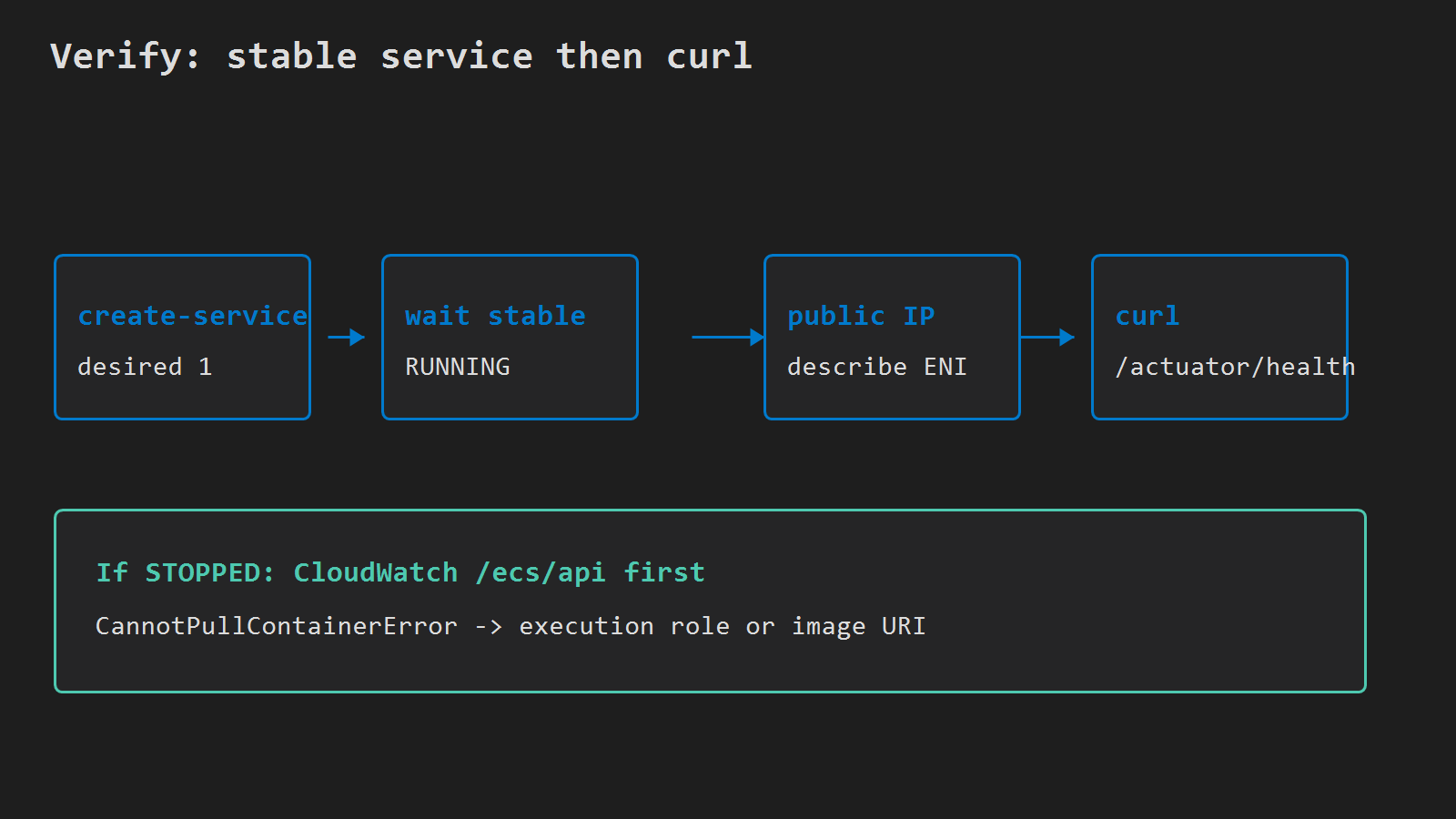
A healthy app returns JSON from Actuator or a normal HTTP body from /. If curl times out, check security group and that assignPublicIp is ENABLED. If the task flips to STOPPED, open CloudWatch Logs → /ecs/api — Spring stack traces and port bind errors show up there before you guess.
Redeploy a new image tag later:
# After docker push .../api:1.0.1 and a new register-task-definition:
# Force the service to start a new deployment with the latest task revision
aws ecs update-service --cluster $CLUSTER --service api --force-new-deployment --region $REGION
The verify figure shows services-stable, public IP, and curl against :8080.
Next in series
Part 3 puts an Application Load Balancer with HTTPS in front of this service — planned slug put-alb-https-in-front-of-fargate-spring-boot. The target group will point at task port 8080; the security group will stop accepting the world on 8080 directly. Part 4 wires GitHub Actions to build, push, and roll the service.
Minimal checklist
- ECR lists tag
1.0.0in the same region as the cluster. - Cluster
apiexists; log group/ecs/apiexists. ecsTaskExecutionRoletrustsecs-tasks.amazonaws.comand hasAmazonECSTaskExecutionRolePolicy.- Task definition
apireferences$IMAGEwith tag1.0.0, port8080, andawslogsto/ecs/api. - Service
apistaysRUNNING;curl http://<public-ip>:8080/actuator/health(or/) succeeds.
After that, Spring Boot runs on Fargate from the same ECR image part 1 published. The EC2 jar deploy can stay until part 3 routes production traffic through the load balancer.
Leave a Reply