I set up GitLab and Jenkins servers with Docker on a Windows server. Using Windows for a multi-purpose host felt less familiar than Linux at first, but once it was running it worked fine.
Docker
1. Enable Linux Subsystem and VirtualMachinePlatform
Run PowerShell as Administrator:
dism.exe /online /enable-feature /featurename:Microsoft-Windows-Subsystem-Linux /all /norestart
dism.exe /online /enable-feature /featurename:VirtualMachinePlatform /all /norestart
2. Install WSL2
wsl --set-default-version 23. Install and start Docker
Download from https://www.docker.com/
4. Open firewall inbound ports
Open ports 80, 443, 22, 21, 20, and 8080.
5. Pull a Docker image
Run Command Prompt as Administrator:
docker pull centos:7Jenkins
1. Run the container
docker run -itd --name jenkins -v D:\jenkins:/host --privileged --restart always -p 8888:8888 -p 2222:22 centos:7 /sbin/init
docker exec -it jenkins /bin/bash
Because CentOS 7 repos are EOL, add these repo fixes (updated 2025.07.23):
sed -i 's/mirrorlist/#mirrorlist/g' /etc/yum.repos.d/CentOS-*
sed -i 's|#baseurl=http://mirror.centos.org|baseurl=http://vault.centos.org|g' /etc/yum.repos.d/CentOS-*
2. Firewall settings
yum install -y firewalld
systemctl enable firewalld
systemctl start firewalld
firewall-cmd --permanent --zone=public --add-port=8888/tcp
firewall-cmd --permanent --zone=public --add-port=22/tcp
firewall-cmd --reload
3. SSH settings
yum install -y openssh-server.x86_64
vi /etc/ssh/sshd_config
Uncomment PermitRootLogin yes.
passwd root
systemctl enable sshd
systemctl start sshd
4. Install base packages (Java)
yum update -y
yum install -y which
yum install -y java-11-openjdk.x86_64
yum install -y java-11-openjdk-devel.x86_64
yum install -y java-1.6.0-openjdk.x86_64
yum install -y java-1.6.0-openjdk-devel.x86_64
alternatives --config java
Press Enter, then choose 1 (Java 11).
readlink /usr/bin/javac -fCopy the path without the trailing bin/javac (example: /usr/lib/jvm/java-11-openjdk-11.0.16.1.1-1.el7_9.x86_64).
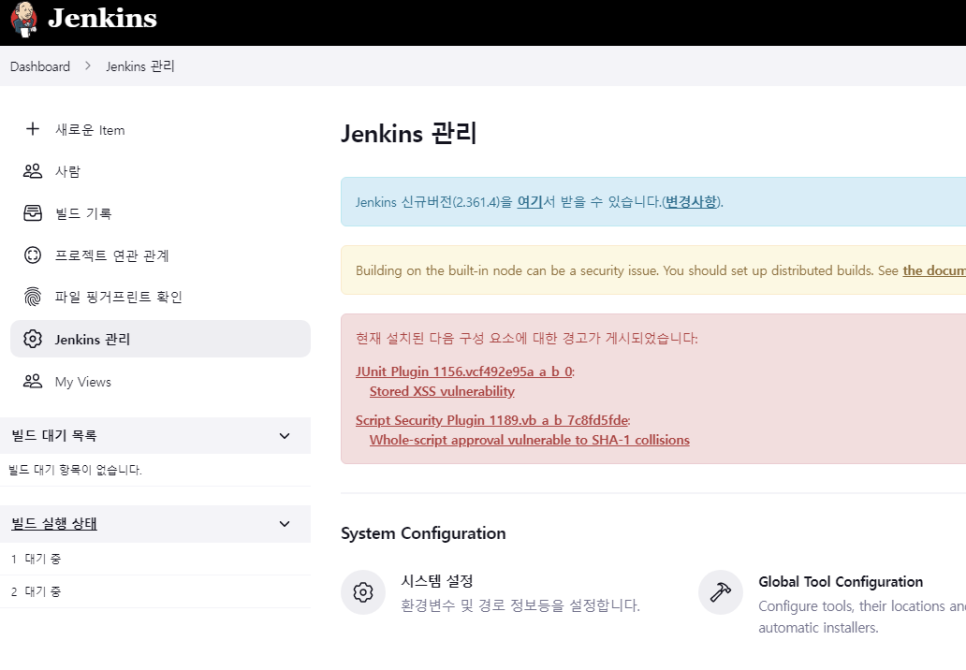
java --version
javac -version
If the versions differ, point them at Java 11:
unlink /etc/alternatives/javac
ln -s /usr/lib/jvm/java-11-openjdk-11.0.16.1.1-1.el7_9.x86_64/bin/java /etc/alternatives/javac
vi /etc/profile
Append:
export JAVA_HOME=/usr/lib/jvm/java-11-openjdk-11.0.16.1.1-1.el7_9.x86_645. Install Jenkins
yum install -y wget
wget -O /etc/yum.repos.d/jenkins.repo https://pkg.jenkins.io/redhat-stable/jenkins.repo
rpm --import https://pkg.jenkins.io/redhat-stable/jenkins.io.key
yum install -y epel-release
yum install -y jenkins
yum install -y git
timedatectl set-timezone Asia/Seoul
vi /etc/sysconfig/jenkins
Set:
JENKINS_PORT="8888"Also set the port in /usr/lib/systemd/system/jenkins.service:
Environment="JENKINS_PORT=8888"systemctl enable jenkins
systemctl start jenkins
cat /var/lib/jenkins/secrets/initialAdminPasswordCopy the initial password, open localhost:8080 (or your mapped port), paste it, install suggested plugins, and create the admin account.
Commands only (Jenkins)
docker run -itd --name jenkins -v D:\jenkins:/host --privileged --restart always -p 8080:8080 -p 2222:22 centos:7 /sbin/init
docker exec -it jenkins /bin/bash
yum install -y firewalld
systemctl enable firewalld
systemctl start firewalld
firewall-cmd --permanent --zone=public --add-port=8080/tcp
firewall-cmd --permanent --zone=public --add-port=22/tcp
firewall-cmd --reload
yum install -y openssh-server.x86_64
systemctl enable sshd
systemctl start sshd
yum update -y
yum install -y which
yum install -y java-11-openjdk.x86_64
yum install -y java-11-openjdk-devel.x86_64
yum install -y java-1.6.0-openjdk.x86_64
yum install -y java-1.6.0-openjdk-devel.x86_64
yum install -y wget
wget -O /etc/yum.repos.d/jenkins.repo https://pkg.jenkins.io/redhat-stable/jenkins.repo
rpm --import https://pkg.jenkins.io/redhat-stable/jenkins.io.key
yum install -y epel-release
yum install -y jenkins
timedatectl set-timezone Asia/Seoul
systemctl enable jenkins
systemctl start jenkins
vi /etc/ssh/sshd_config
# uncomment PermitRootLogin yes
passwd root
readlink /usr/bin/javac -f
# copy path without trailing bin/javac
vi /etc/profile
alternatives --config java
# Enter, then 1 for Java 11
export JAVA_HOME=/usr/lib/jvm/java-11-openjdk-11.0.16.1.1-1.el7_9.x86_64
java --version
javac -version
# if versions differ, fix to Java 11:
unlink /etc/alternatives/javac
ln -s /usr/lib/jvm/java-11-openjdk-11.0.16.1.1-1.el7_9.x86_64/bin/java /etc/alternatives/javac
cat /var/lib/jenkins/secrets/initialAdminPassword
# open localhost:8080, paste password, install suggested plugins, create admin
GitLab
1. Run the container
docker run -d --name gitlab -v D:\gitlab:/host --privileged --restart always -p 25:25 -p 80:80 -p 443:443 -p 22:22 -p 21:21 -p 20:20 centos:7 /sbin/init
docker exec -it gitlab /bin/bash
2. Firewall settings
yum install -y firewalld
systemctl enable firewalld
systemctl start firewalld
firewall-cmd --permanent --zone=public --add-port=80/tcp
firewall-cmd --permanent --zone=public --add-port=443/tcp
firewall-cmd --permanent --zone=public --add-port=22/tcp
firewall-cmd --permanent --zone=public --add-port=21/tcp
firewall-cmd --permanent --zone=public --add-port=20/tcp
firewall-cmd --permanent --zone=public --add-port=25/tcp
firewall-cmd --reload
3. SSH settings
yum install -y openssh-server.x86_64
vi /etc/ssh/sshd_config
Uncomment PermitRootLogin yes.
passwd root
systemctl enable sshd
systemctl start sshd
4. Install base packages
yum update -y
timedatectl set-timezone Asia/Seoul
yum install -y which
yum install -y curl policycoreutils-python
5. Install GitLab
yum install -y git
curl -sS https://packages.gitlab.com/install/repositories/gitlab/gitlab-ce/script.rpm.sh | bash
EXTERNAL_URL="127.0.0.1" yum install -y gitlab-ce
cat /etc/gitlab/initial_root_password
gitlab-ctl start
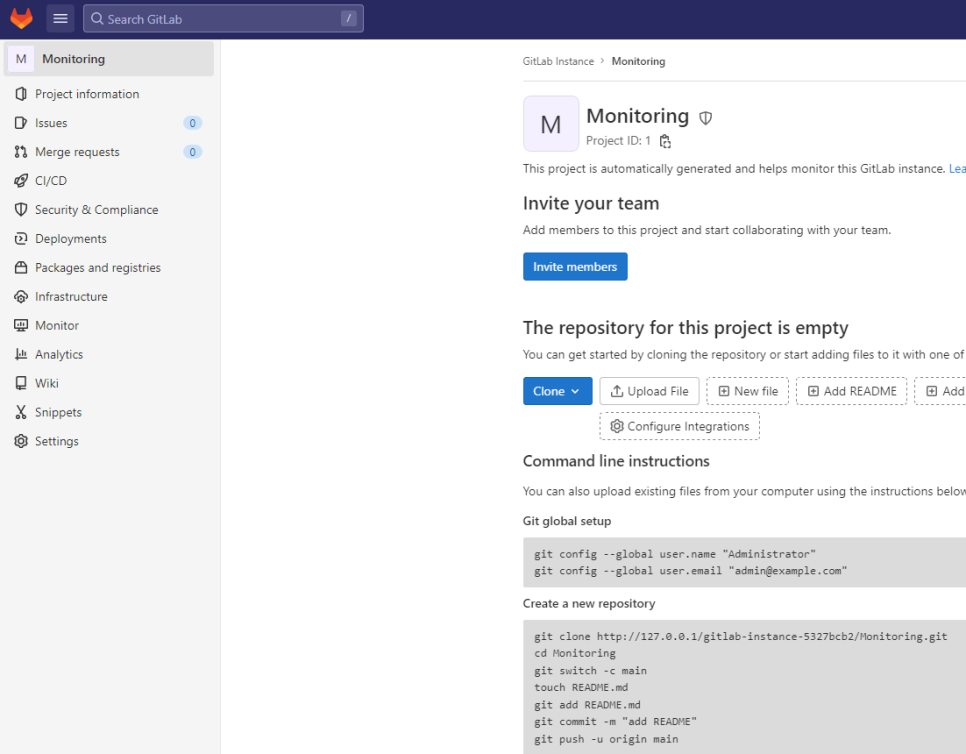
Log in as root with the password from initial_root_password.
Commands only (GitLab)
docker run -d --name gitlab -v D:\gitlab:/host --privileged --restart always -p 25:25 -p 80:80 -p 443:443 -p 22:22 -p 21:21 -p 20:20 centos:7 /sbin/init
docker exec -it gitlab /bin/bash
yum install -y firewalld
systemctl enable firewalld
systemctl start firewalld
firewall-cmd --permanent --zone=public --add-port=80/tcp
firewall-cmd --permanent --zone=public --add-port=443/tcp
firewall-cmd --permanent --zone=public --add-port=22/tcp
firewall-cmd --permanent --zone=public --add-port=21/tcp
firewall-cmd --permanent --zone=public --add-port=20/tcp
firewall-cmd --permanent --zone=public --add-port=25/tcp
firewall-cmd --reload
yum install -y openssh-server.x86_64
systemctl enable sshd
systemctl start sshd
yum update -y
timedatectl set-timezone Asia/Seoul
yum install -y which
yum install -y curl policycoreutils-python
yum install -y git
curl -sS https://packages.gitlab.com/install/repositories/gitlab/gitlab-ce/script.rpm.sh | bash
EXTERNAL_URL="127.0.0.1" yum install -y gitlab-ce
vi /etc/ssh/sshd_config
# uncomment PermitRootLogin yes
passwd root
cat /etc/gitlab/initial_root_password
gitlab-ctl start
# log in as root with the copied password
Leave a Reply