JDK install and download walkthrough.
First download JDK 1.7 from Oracle:
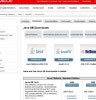
http://www.oracle.com/technetwork/java/javase/downloads/index.html
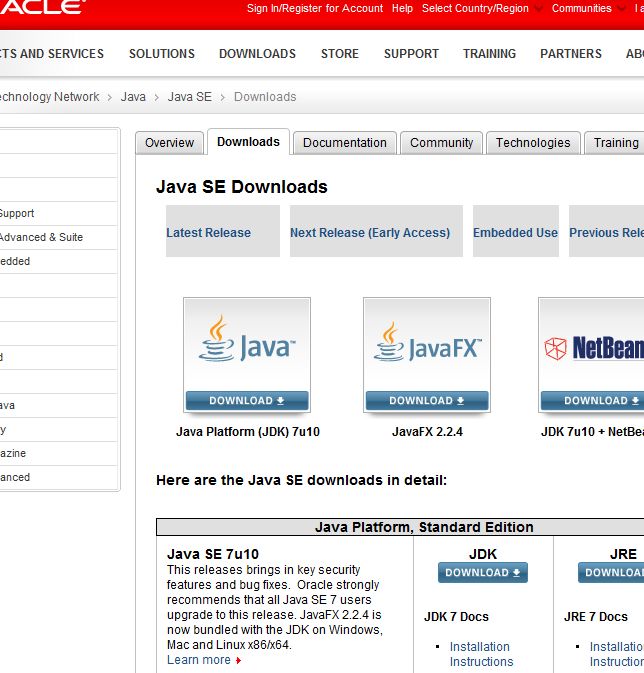
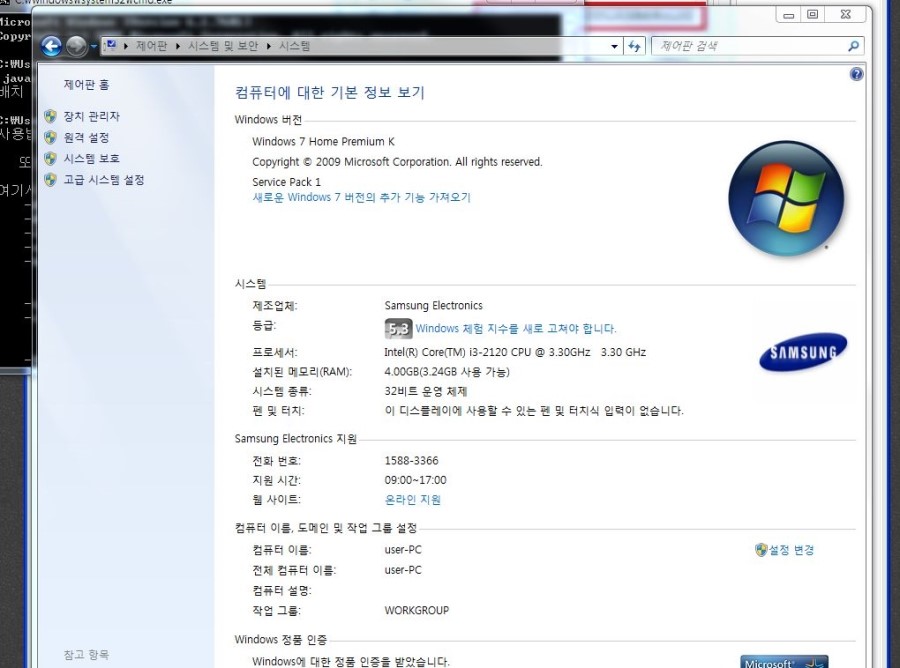
Under Java Platform, Standard Edition, choose Java SE 7u10 JDK. Accept the license. My PC was 32-bit Windows, so I downloaded Windows x86.
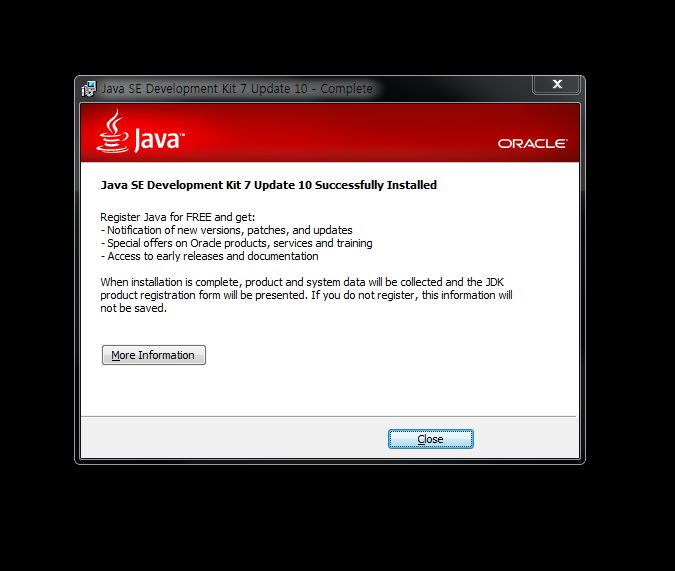
Run the installer, click Next, and set the folder (I used D:\Java\jdk1.7\).
Environment variables
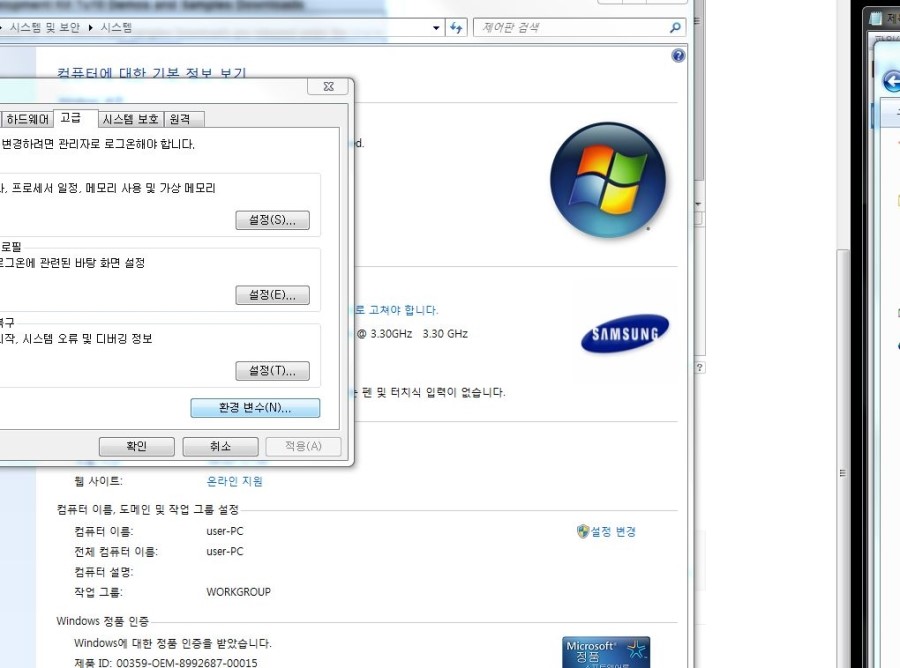
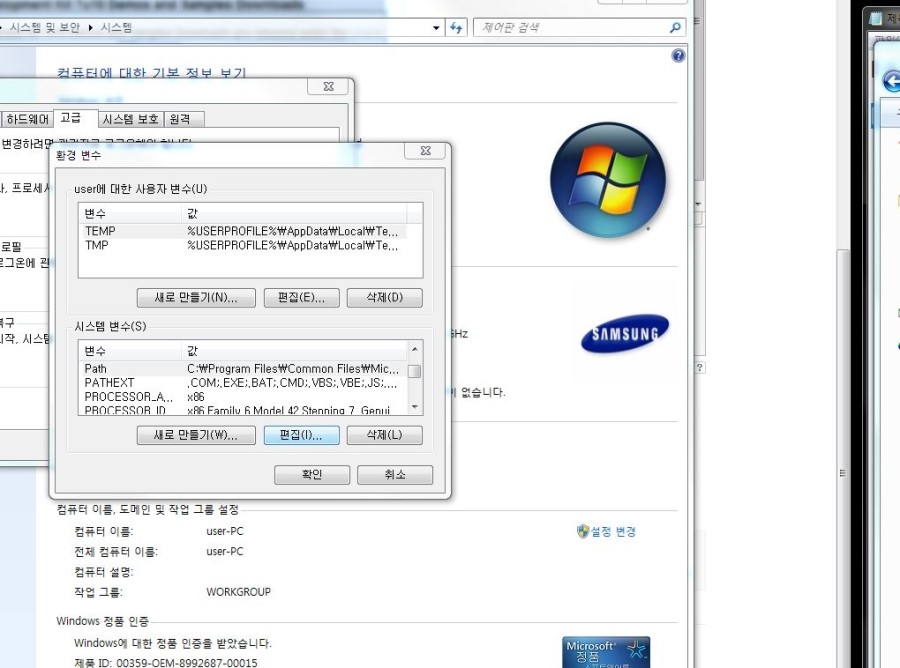
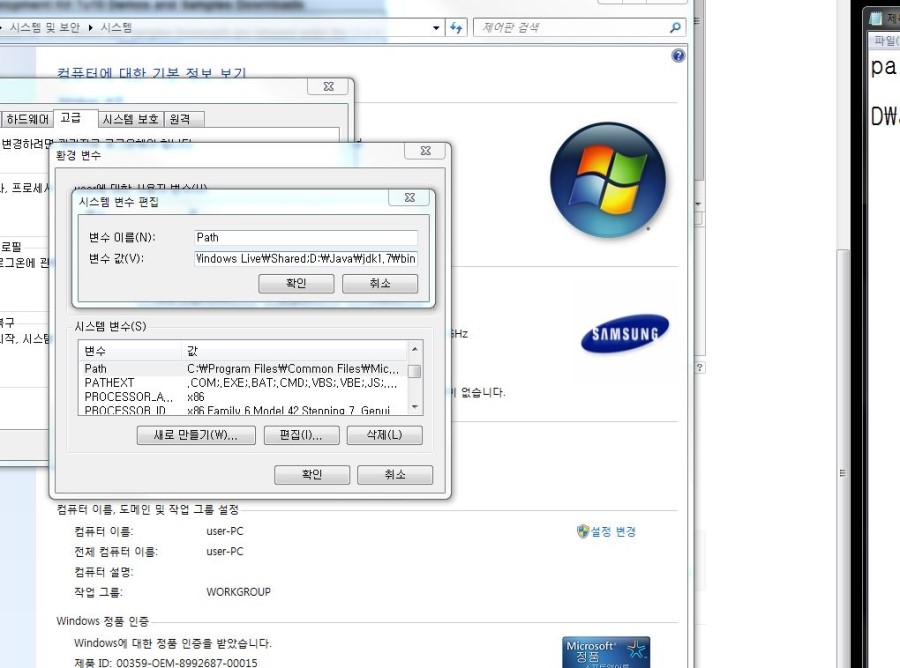
Open Advanced system settings -> Environment Variables. Edit the system Path variable and append ;D:\Java\jdk1.7\bin, then confirm.
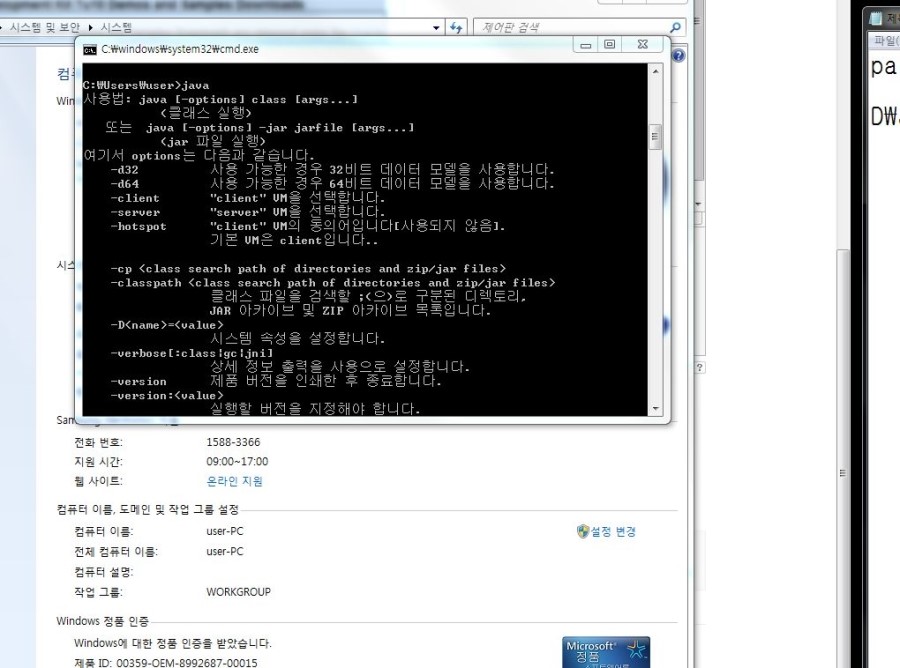
Open cmd (Windows search for cmd, or Win+R then cmd) and run java. You should see the usage help. That means JDK install and PATH setup are done.
Leave a Reply