It is more comfortable to work in an environment where everything is already installed. I planned to post Tomcat later, but decided to cover install and Eclipse integration first.
Do you already have JDK and Eclipse? JDK install:
https://blog.naver.com/kikiiyy/30155101855
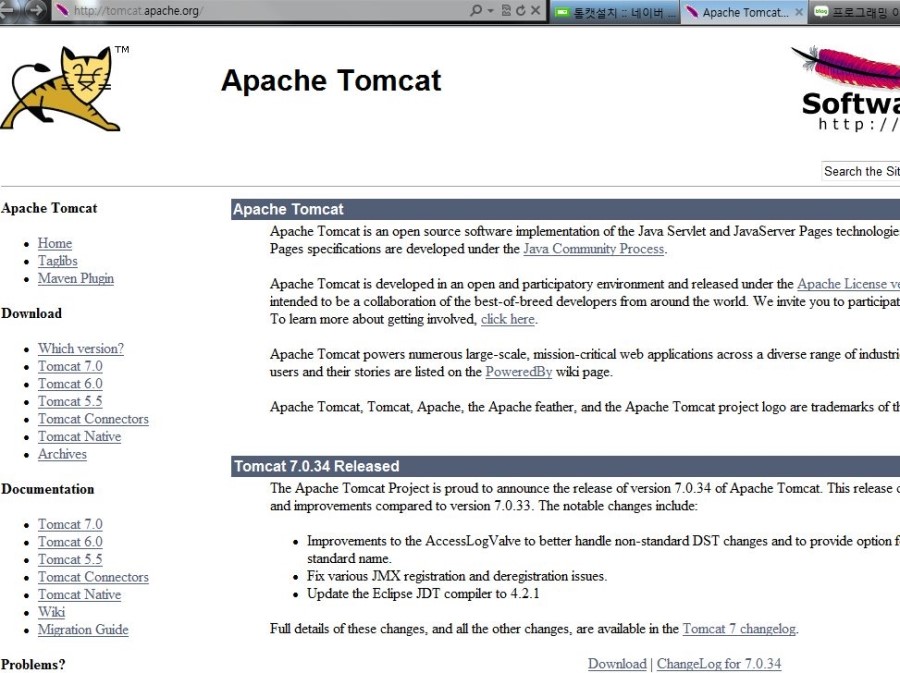
Install Tomcat
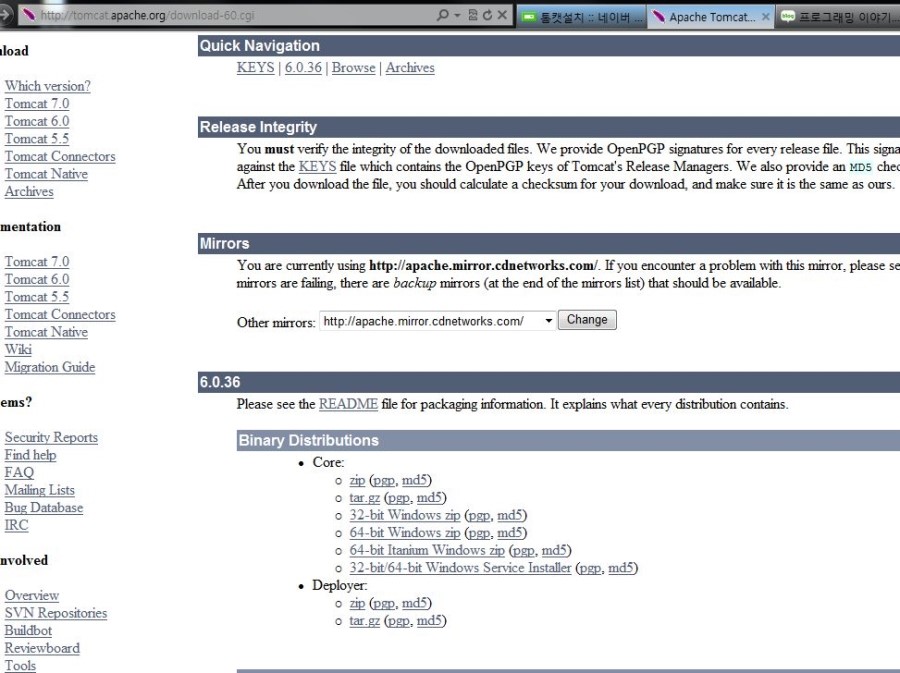
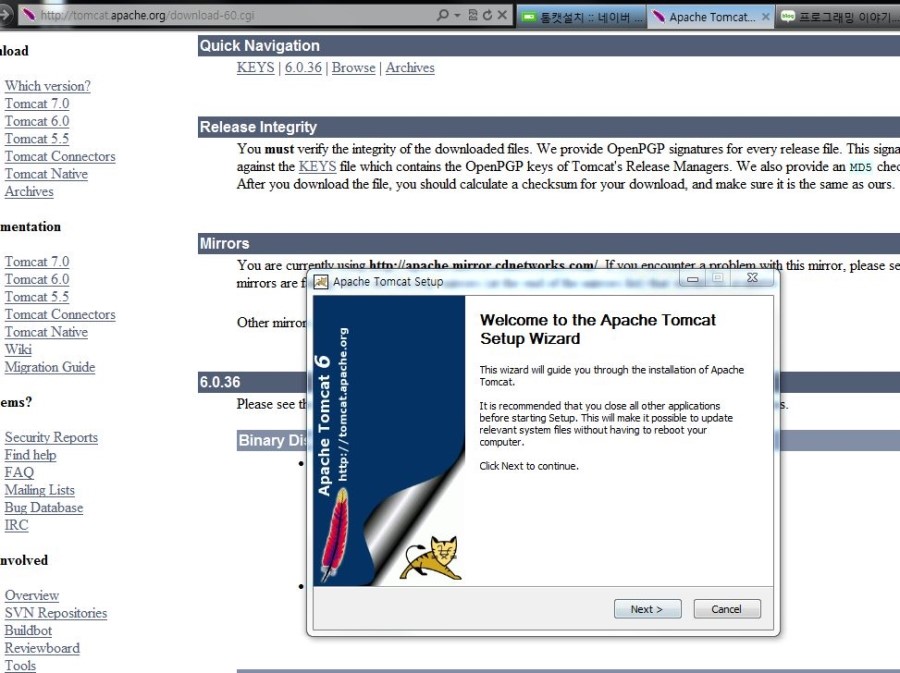
Go to http://tomcat.apache.org/, open Download, and choose Tomcat 6.0. Under Binary Distributions / Core, download the Windows Service Installer and run it.
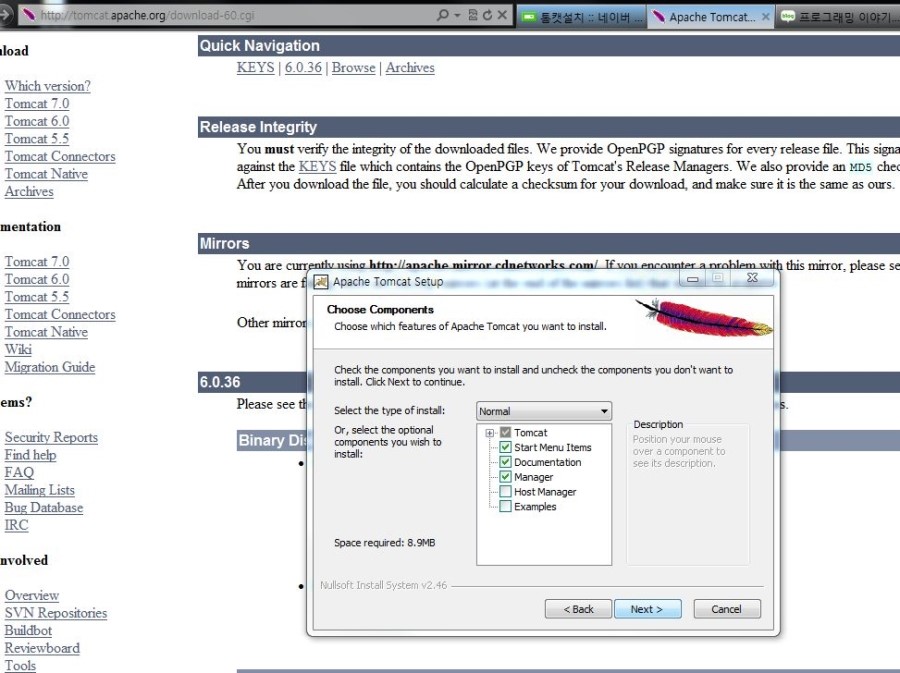
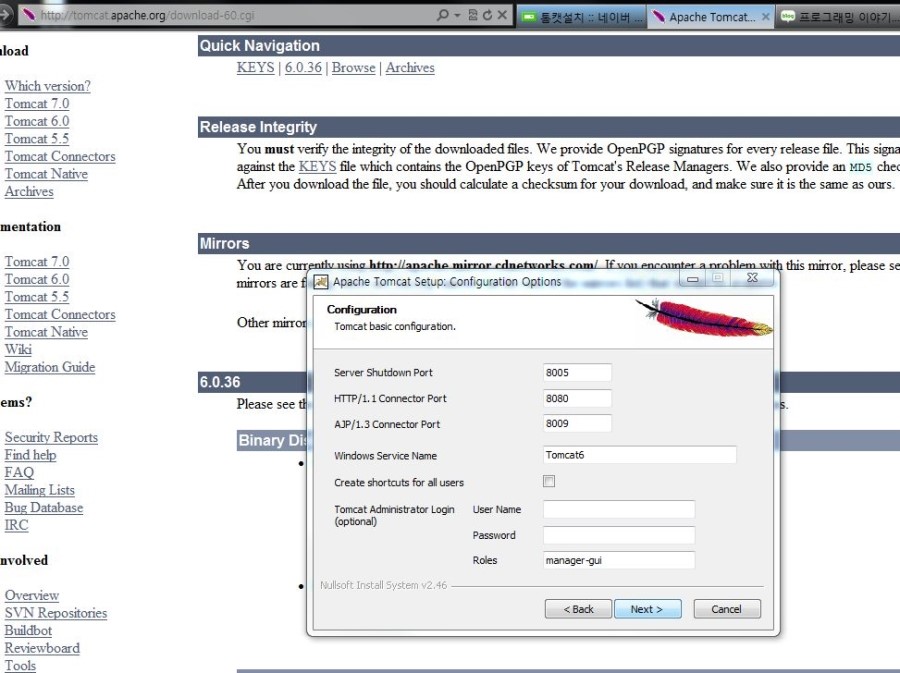
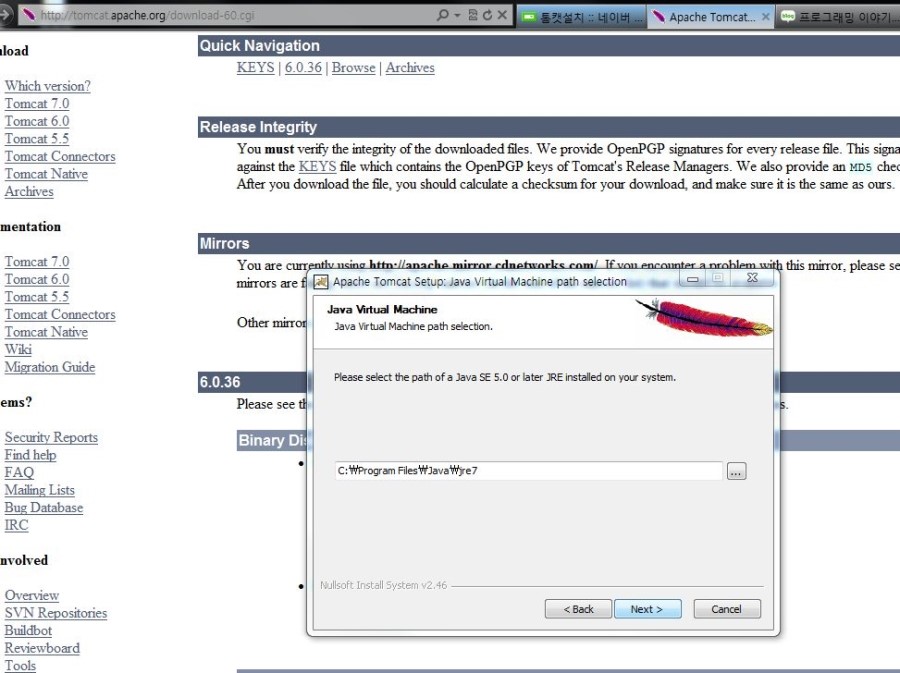
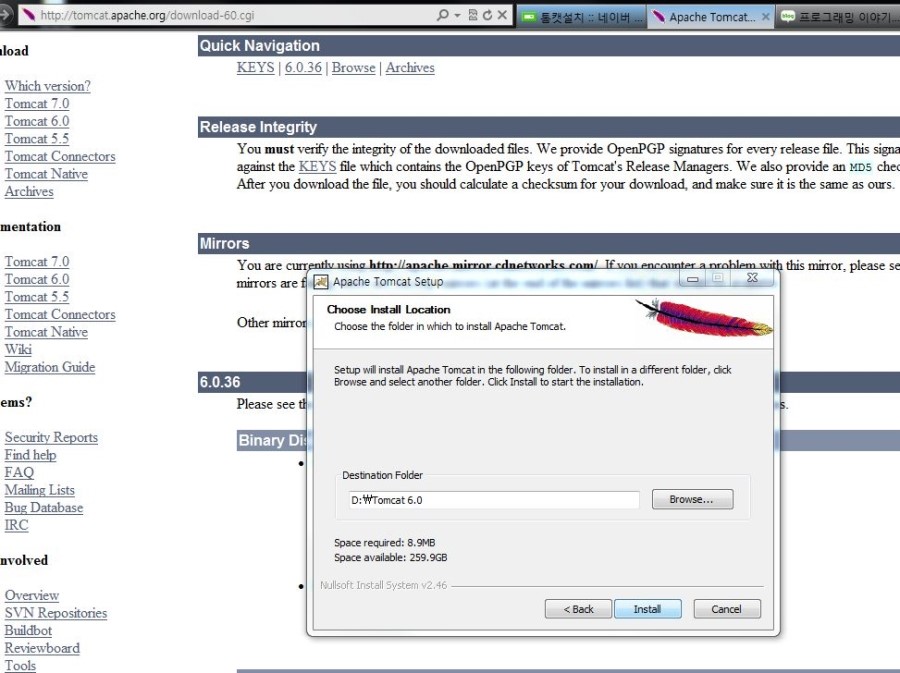
Click Next through the defaults. When asked for the JRE path, use the JRE folder created when you installed the JDK (usually the same location you chose). Set the Tomcat install folder wherever you want (you can drop the Apache Foundation default path and pick your own).
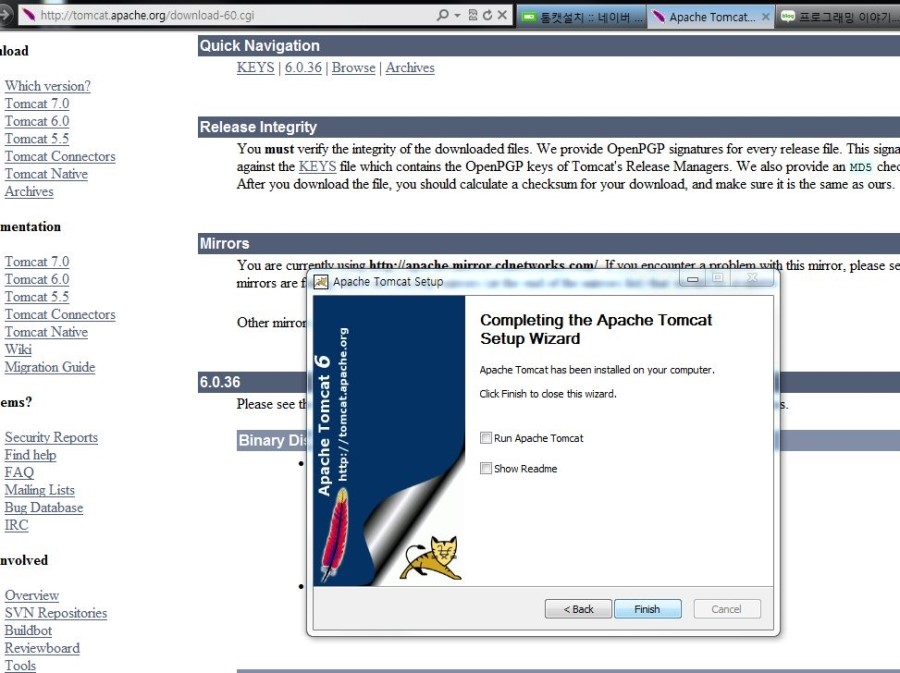
Install finishes there.
Connect Eclipse to Tomcat
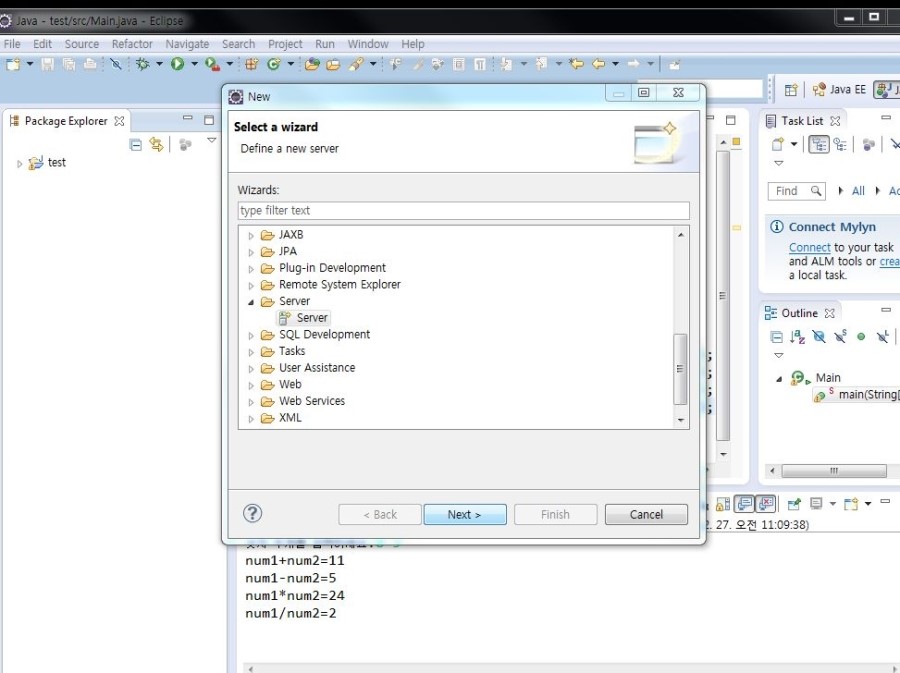
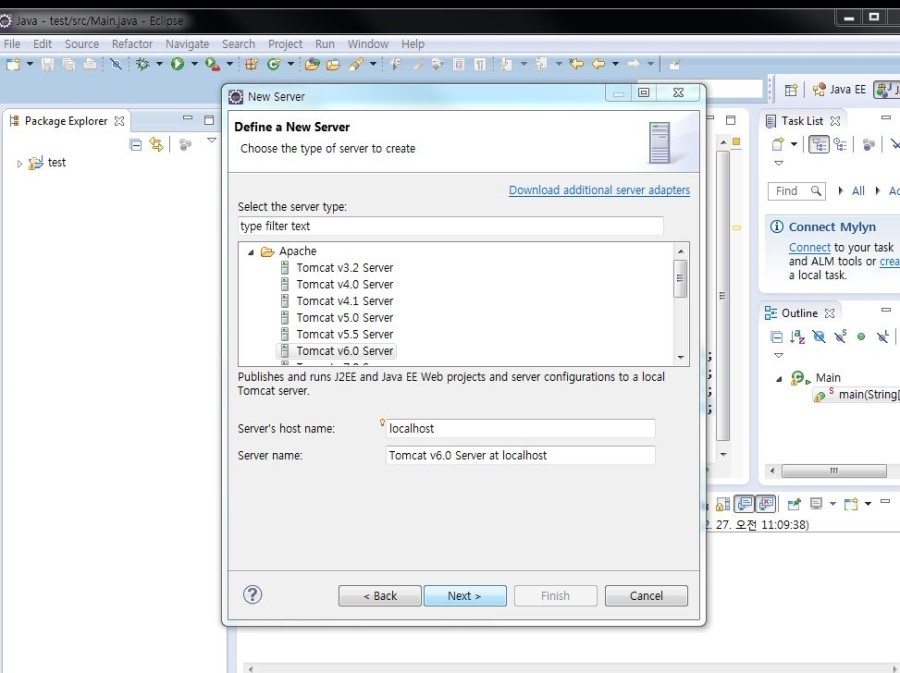
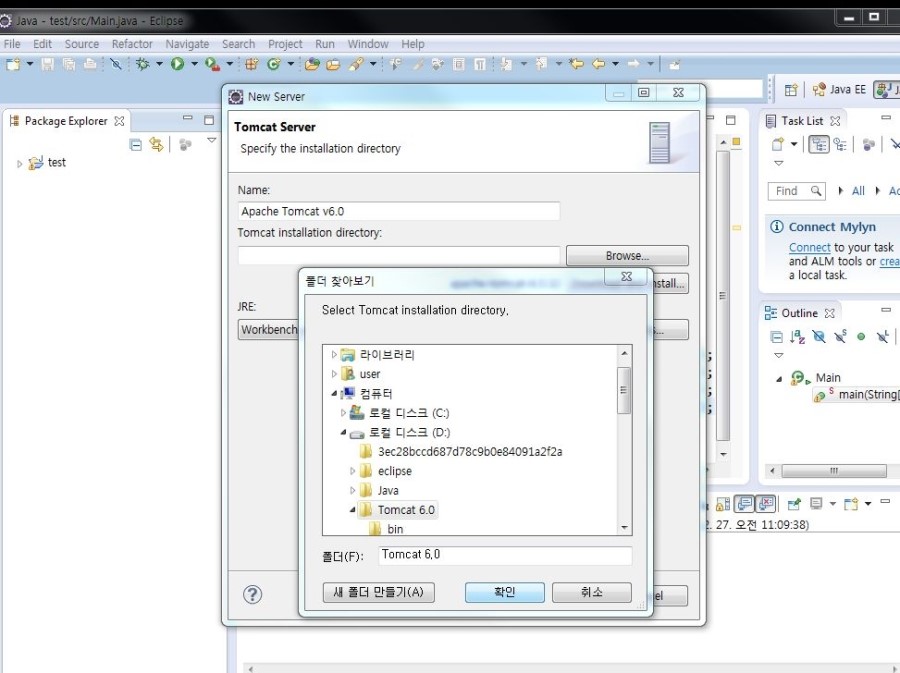
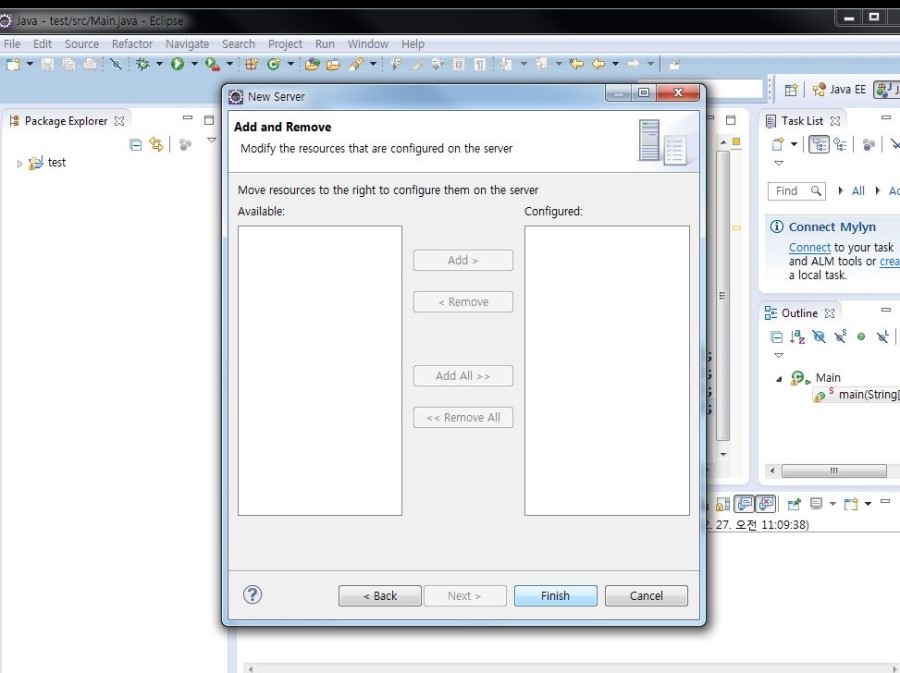
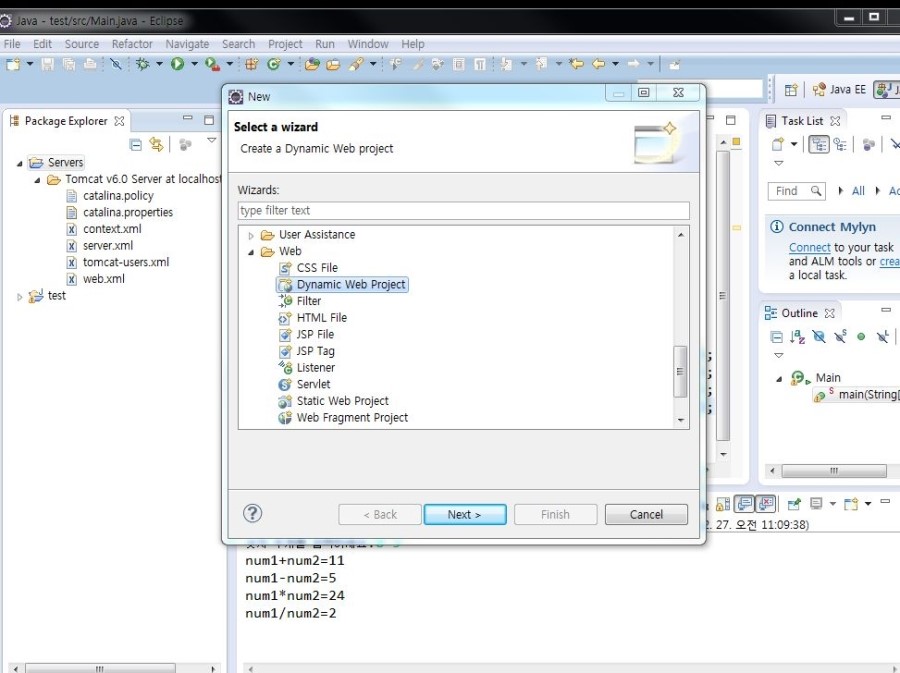
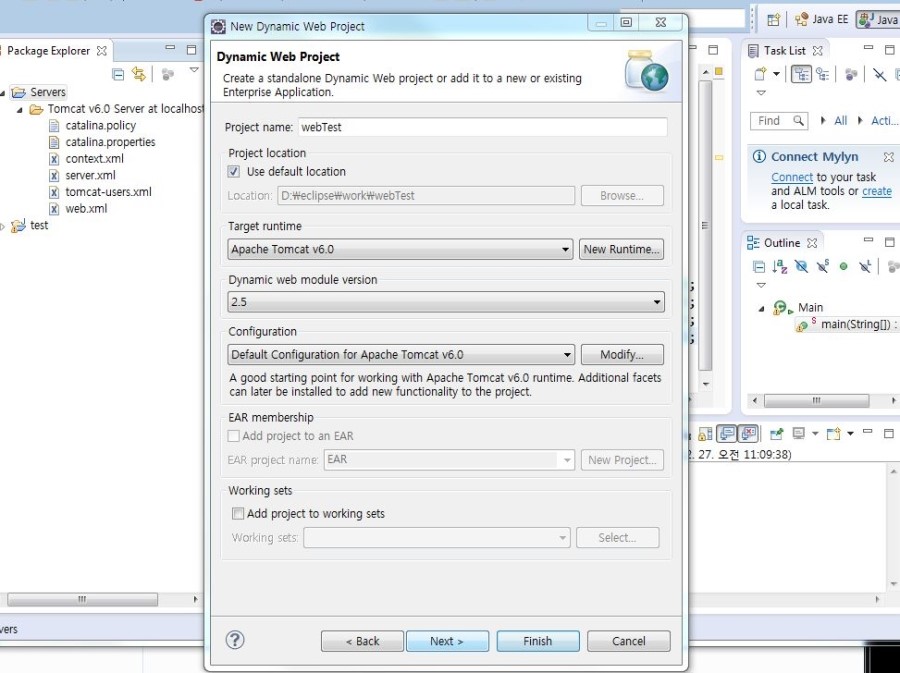
In Eclipse: New -> Other -> Server. We installed Tomcat 6.0. Set the Tomcat installation directory to your Tomcat folder, confirm, and finish.
Environment variables
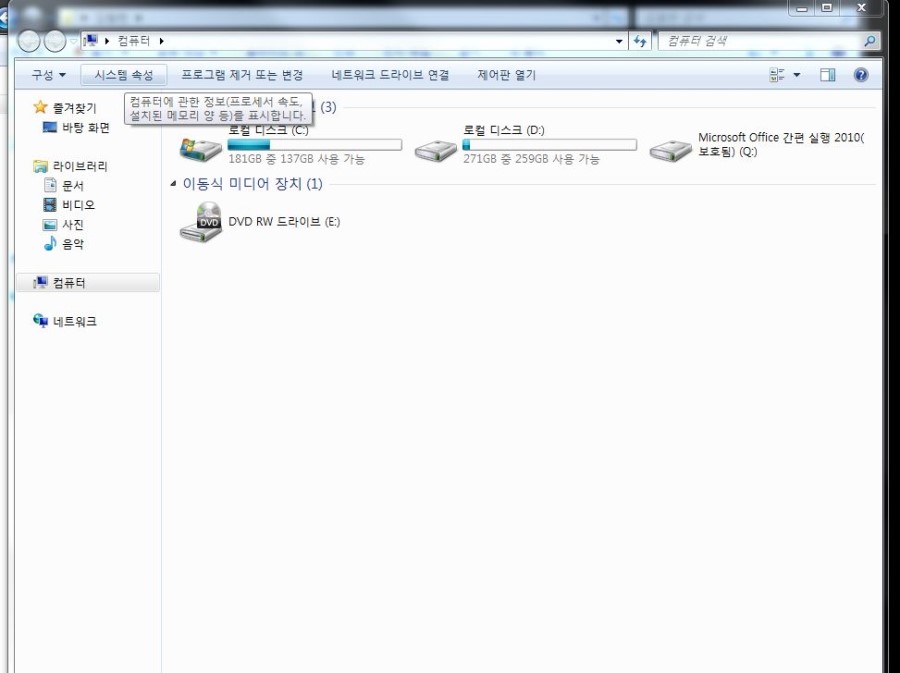
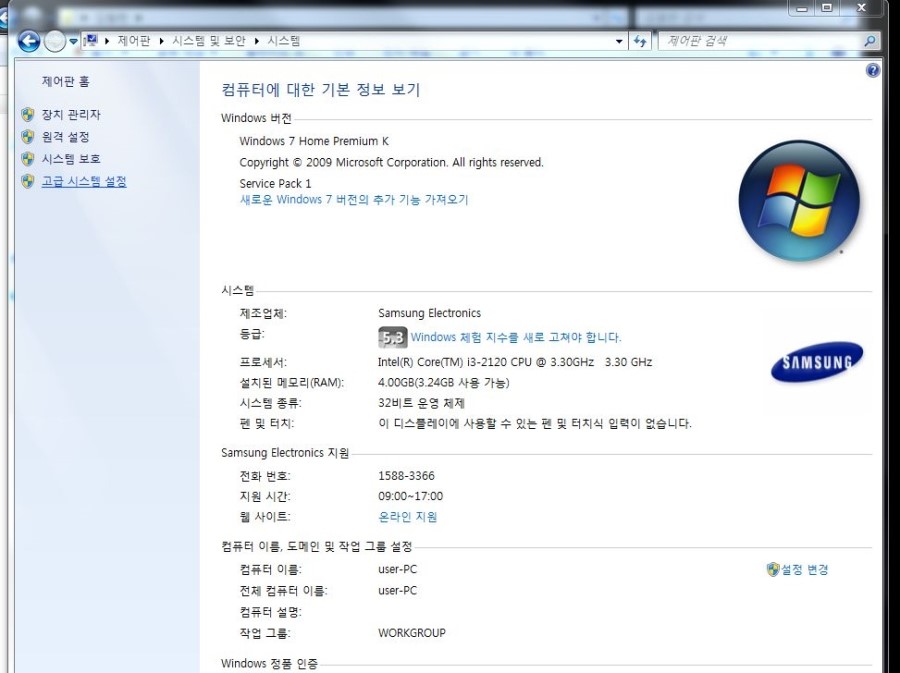
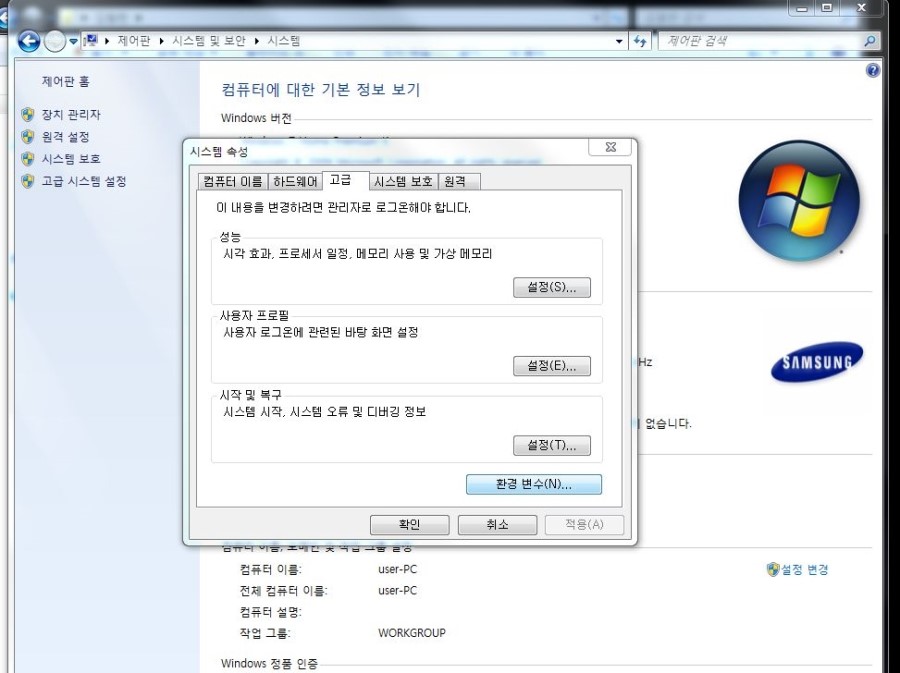
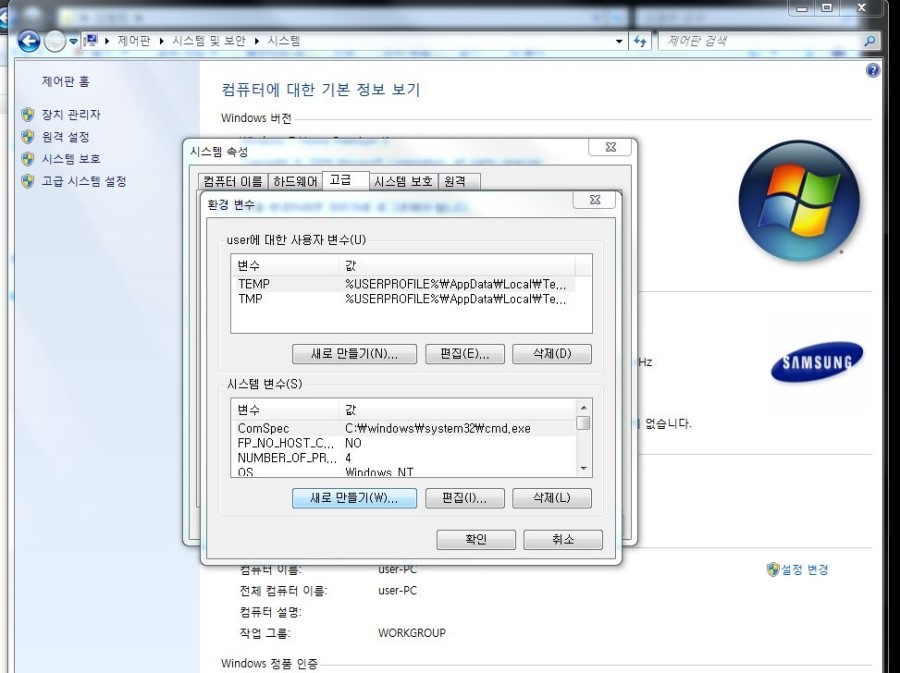
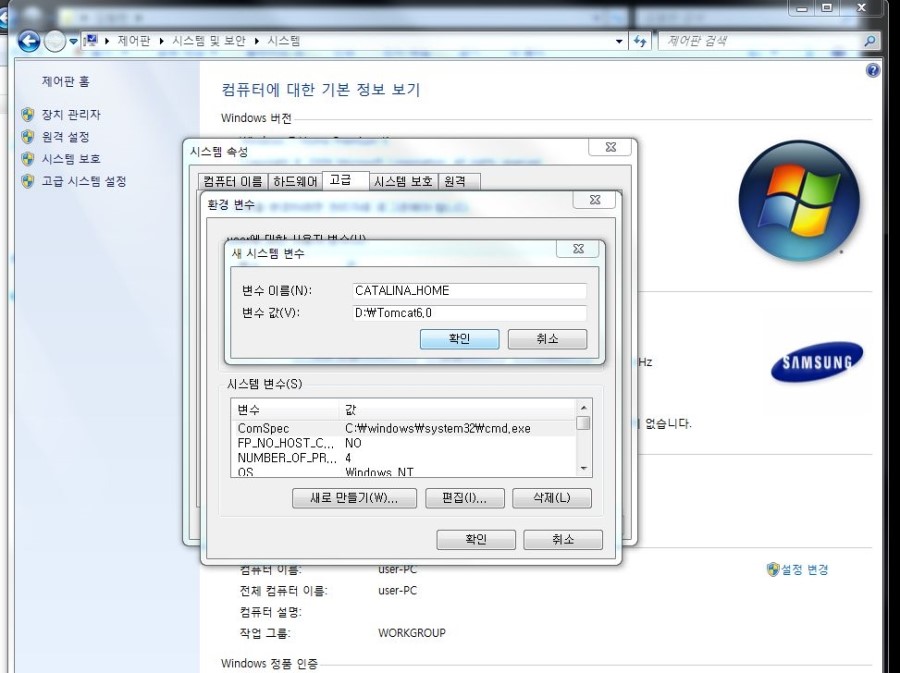
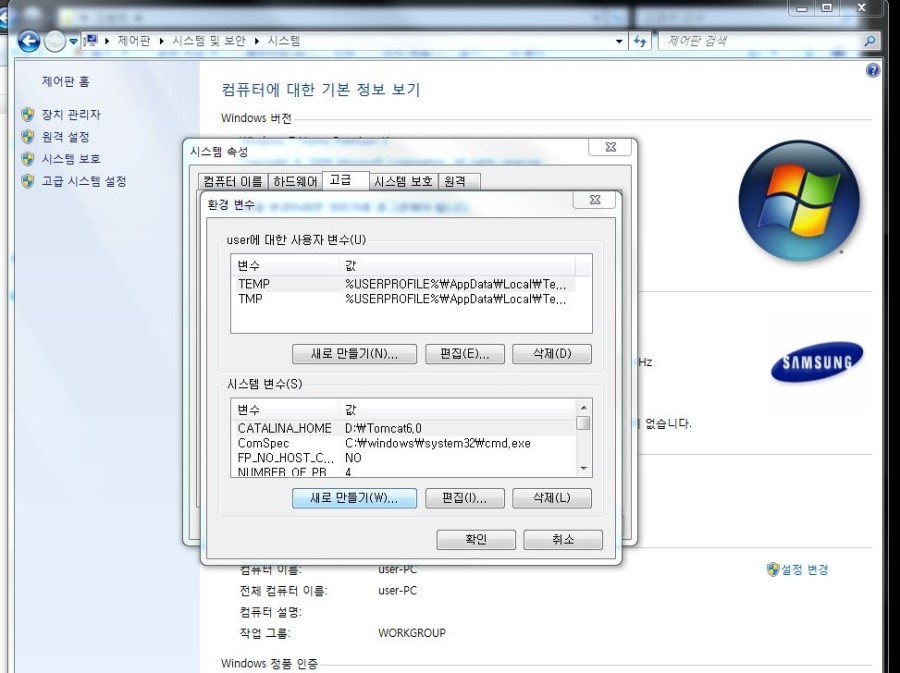
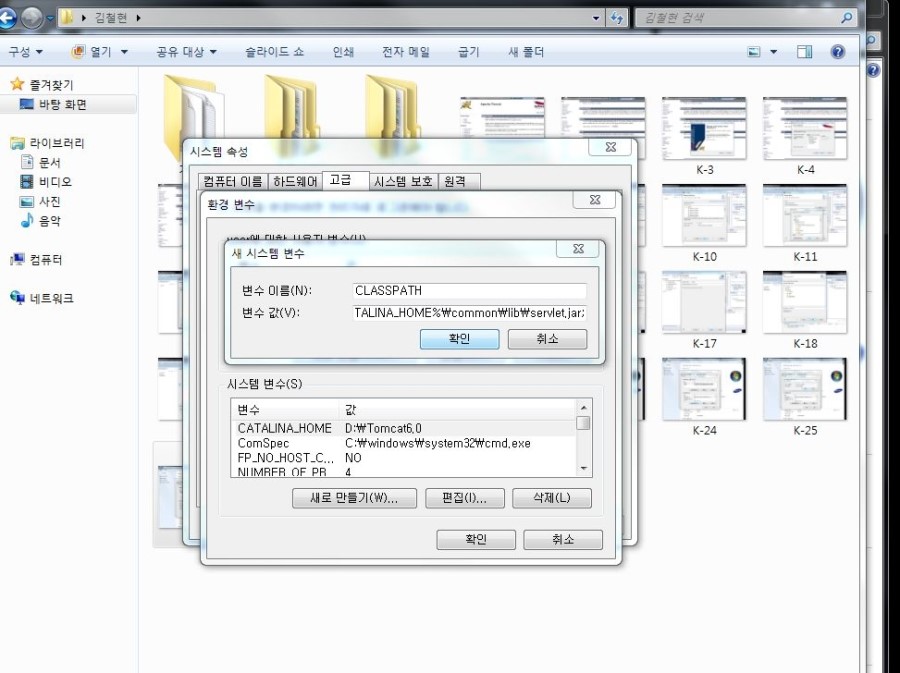
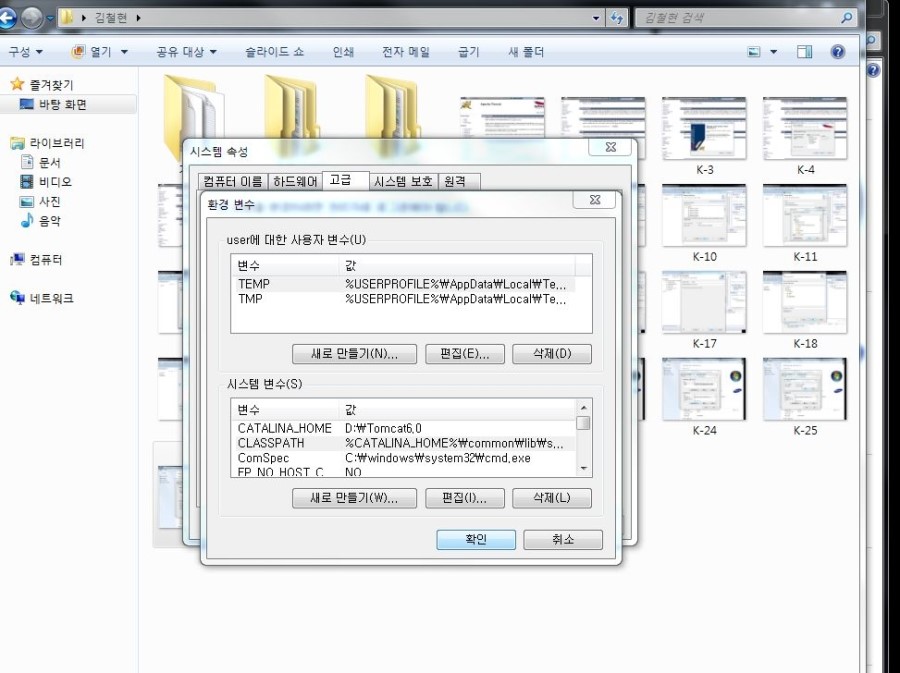
Computer -> System properties -> Advanced system settings -> Environment Variables. Under System variables, create:
- Name:
CATALINA_HOME/ Value:D:\Tomcat 6.0(your install path) - Name:
CLASSPATH/ Value:%CATALINA_HOME%\common\lib\servlet.jar;
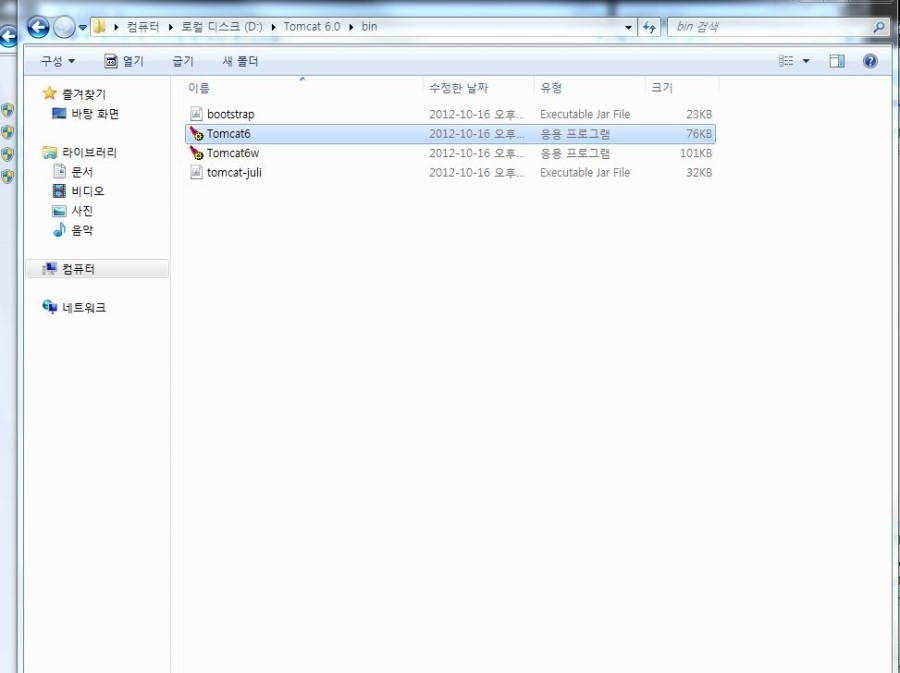
Confirm the settings. In my case the bin folder was D:\Tomcat 6.0\bin.
Verify
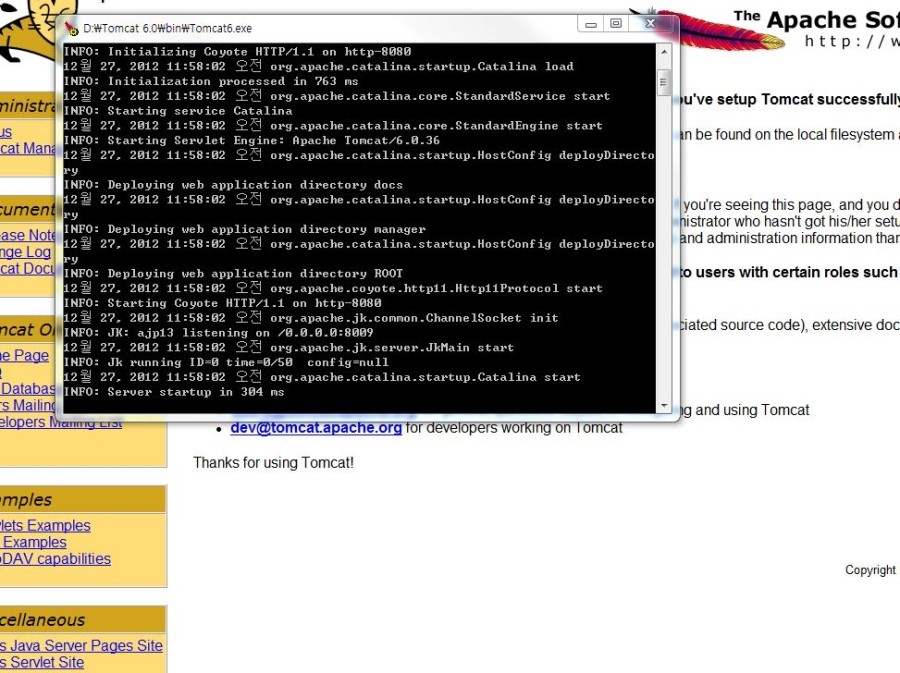
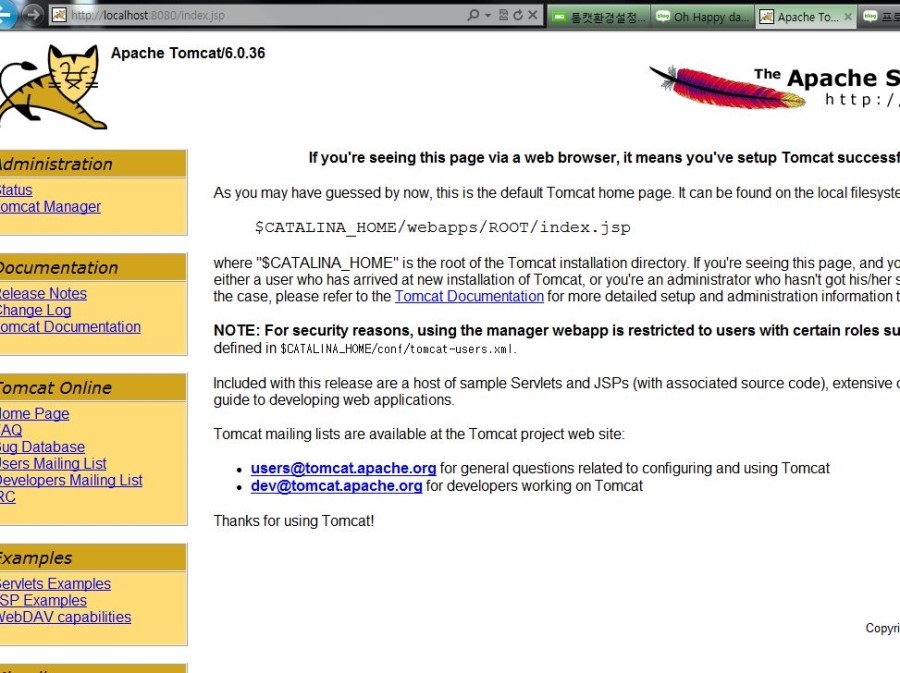
Start Tomcat (cmd may open). With it running, open http://localhost:8080/index.jsp. If you see the Tomcat cat page, it worked.
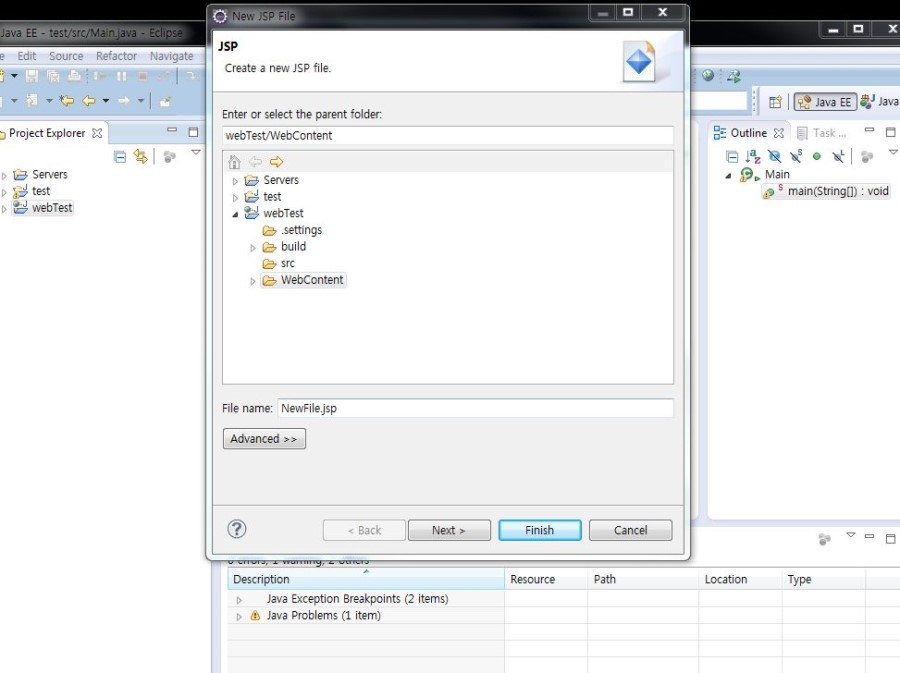
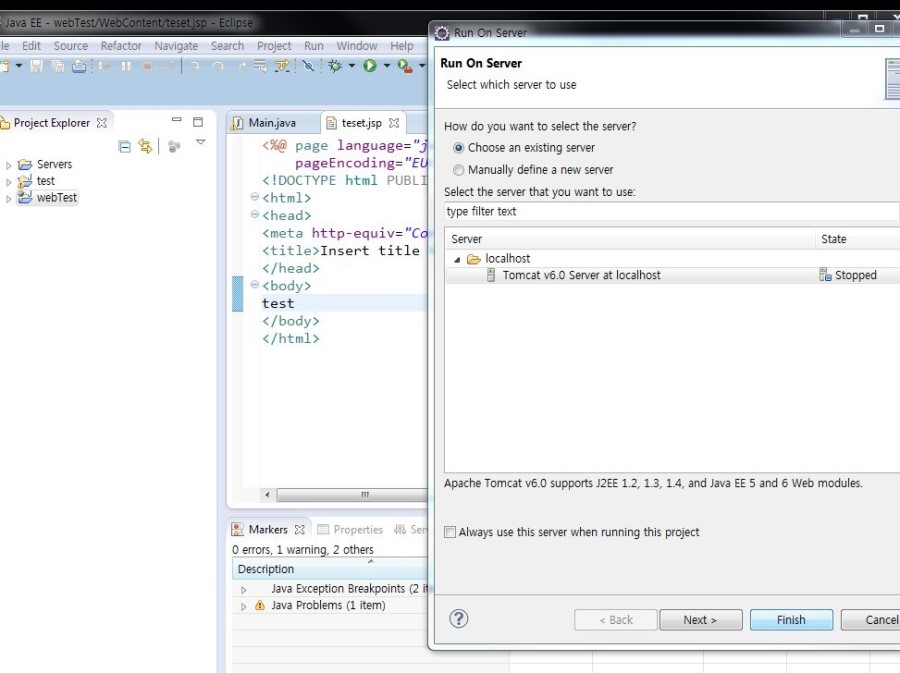
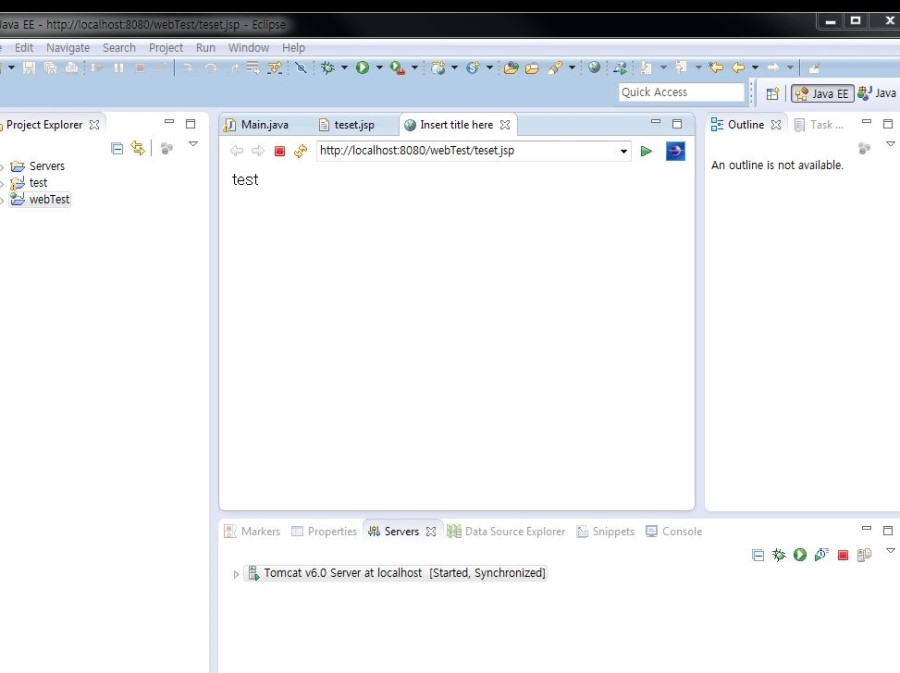
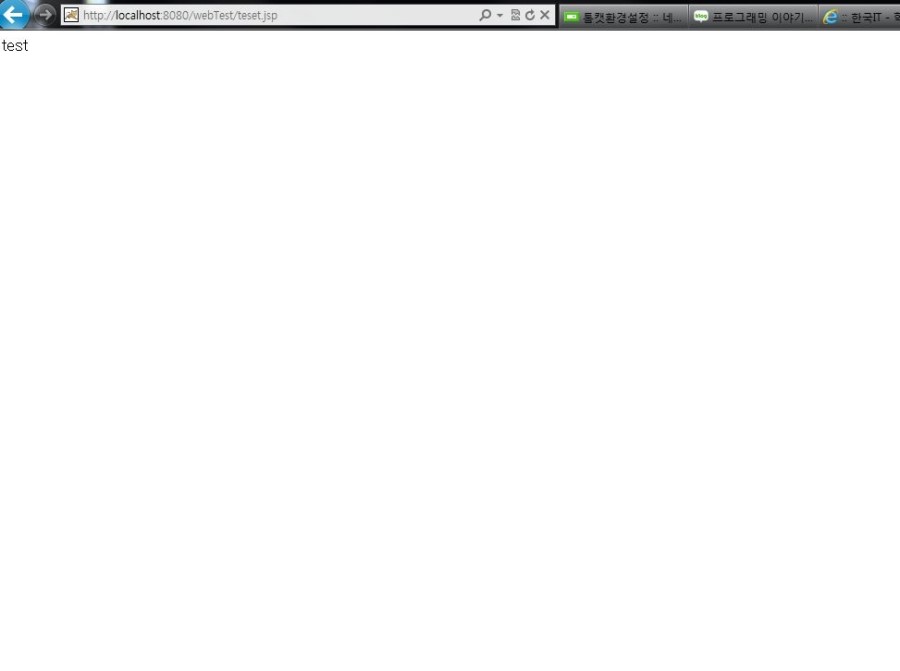
Then create a JSP via New -> Other, put any text in it, run on the Tomcat server you installed, copy the URL into IE (or your browser), and confirm. Done.
Leave a Reply