GitLab basic settings
Korean language
Log in → click the profile icon (top right) → Preferences → Localization → Language → Korean.
Approve users as admin
- Log in as admin
- Open the menu toggle (top left) → Admin (admin page below)
- Dashboard → Users → Pending approval → Approve
Create group and project
Create group: Admin page → Groups → New group → create group1.
Add members: Admin page → Groups → Add users to group.
Create project: Admin page → Projects → New project → Create blank project → create test.
Change and add branches
- In the
testproject: Settings → Repository → Default branch → changemainto another name (e.g.dev) - Files → Branches → New branch → add
release
Unprotect the default branch (allow force push)
test project → Settings → Repository → Protected Branches → Expand → Unprotect.
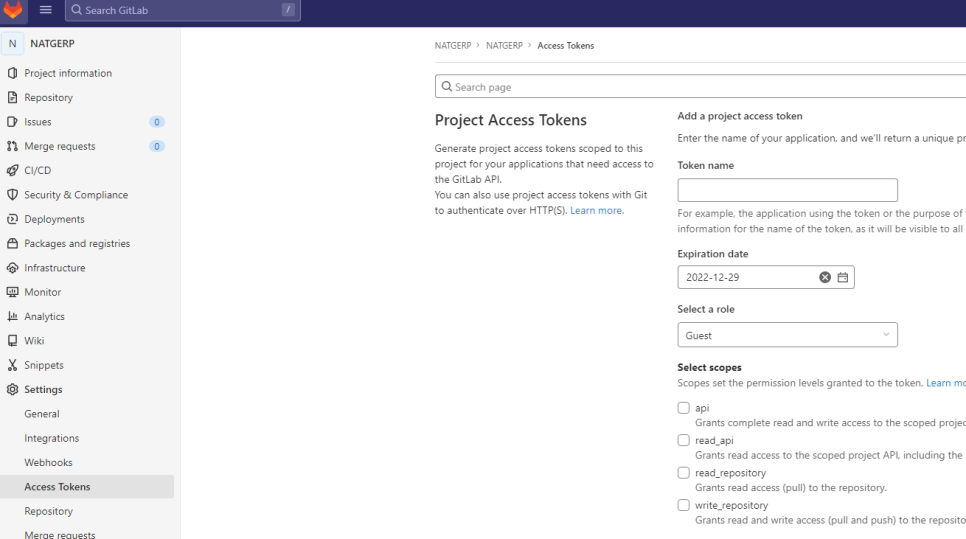
Create a GitLab token
testproject → Settings → Access tokens → check all permissions → create- You get a token starting with
glpat-
GitLab webhook settings (1)
Allow webhooks to the local network: Admin page → Settings → Network → Outbound requests → enable Allow requests to the local network from web hooks and services.
Jenkins basic settings
Install plugins
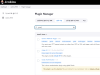
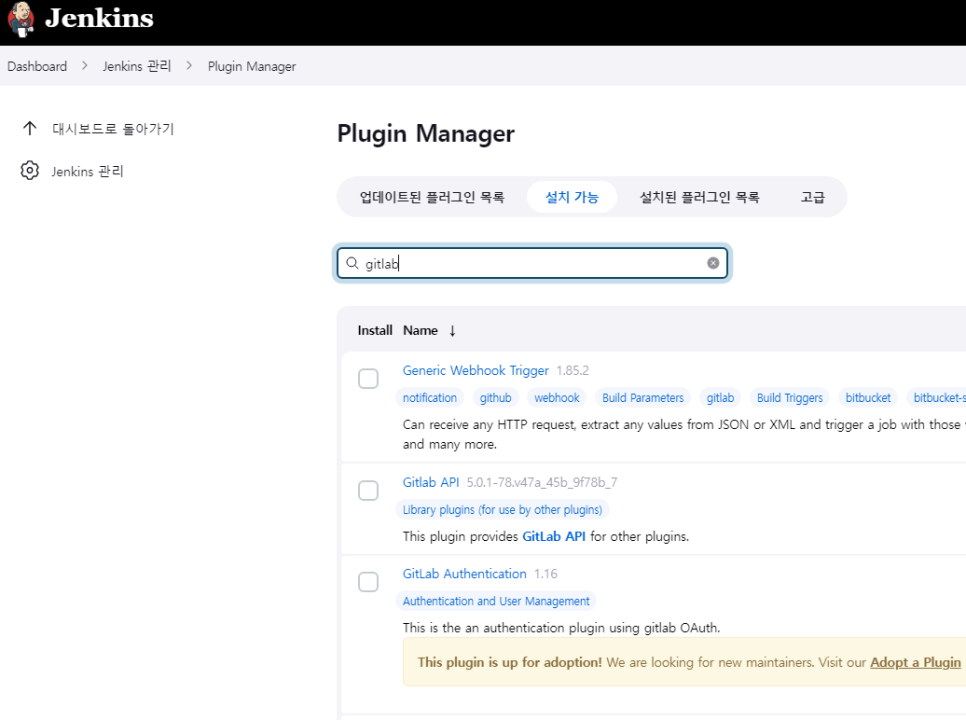
Manage Jenkins → Plugins → Available plugins → search and install git server and gitlab.
Tool configuration
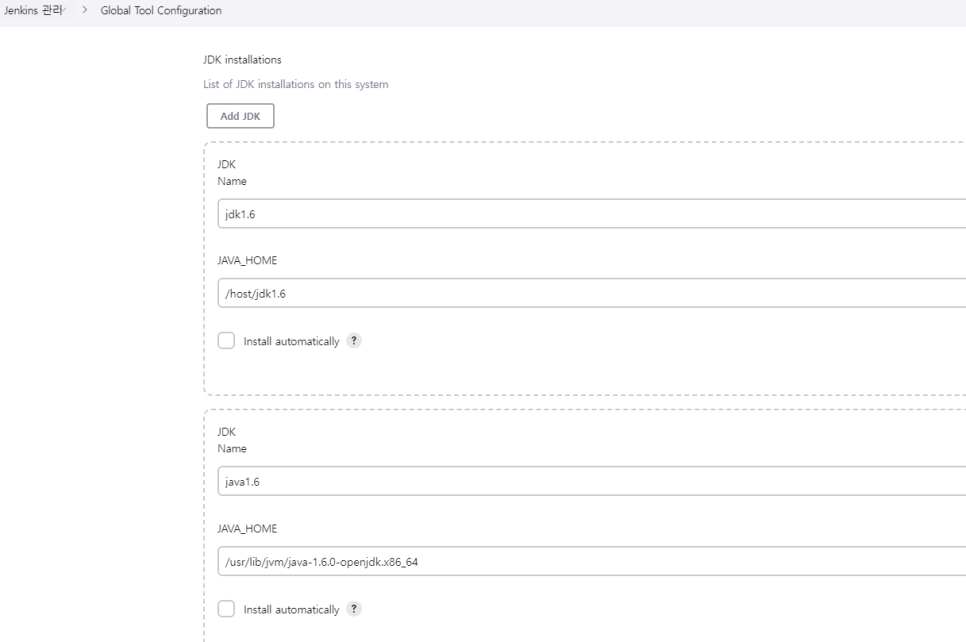
Manage Jenkins → Global Tool Configuration:
- JDK — enter the path of an already installed JDK (e.g.
/usr/bin/java), or choose an installable version (Install automatically requires an Oracle login).
Check withreadlink /etc/alternatives/javaoralternatives --config java. - Git — name:
default, path:git
System settings — GitLab credentials
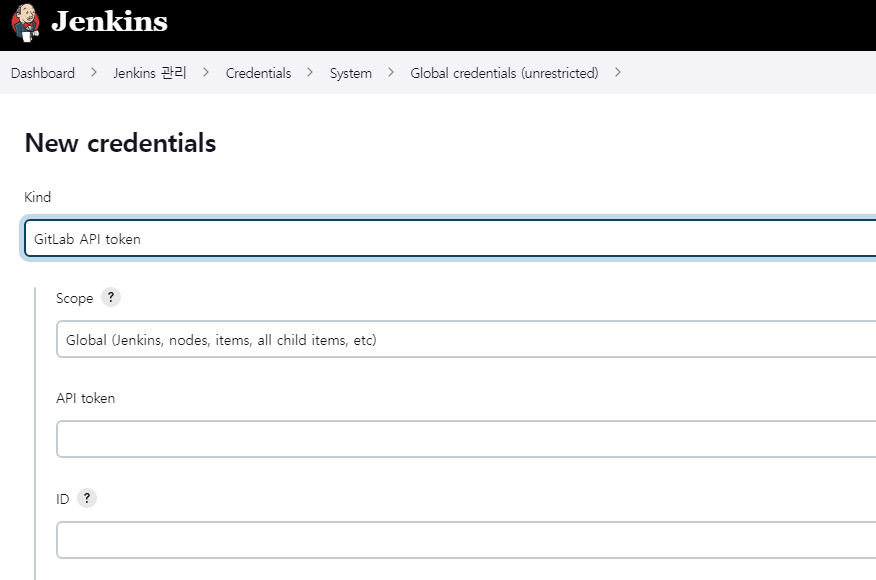
Manage Jenkins → Manage credentials → System → Global credentials → Add Credentials → GitLab API token → paste the glpat- token → create.
Pipeline GitLab credentials
Manage Jenkins → Manage credentials → System → Global credentials → Add Credentials → Username with password → enter the GitLab root account → create.
GitLab connection
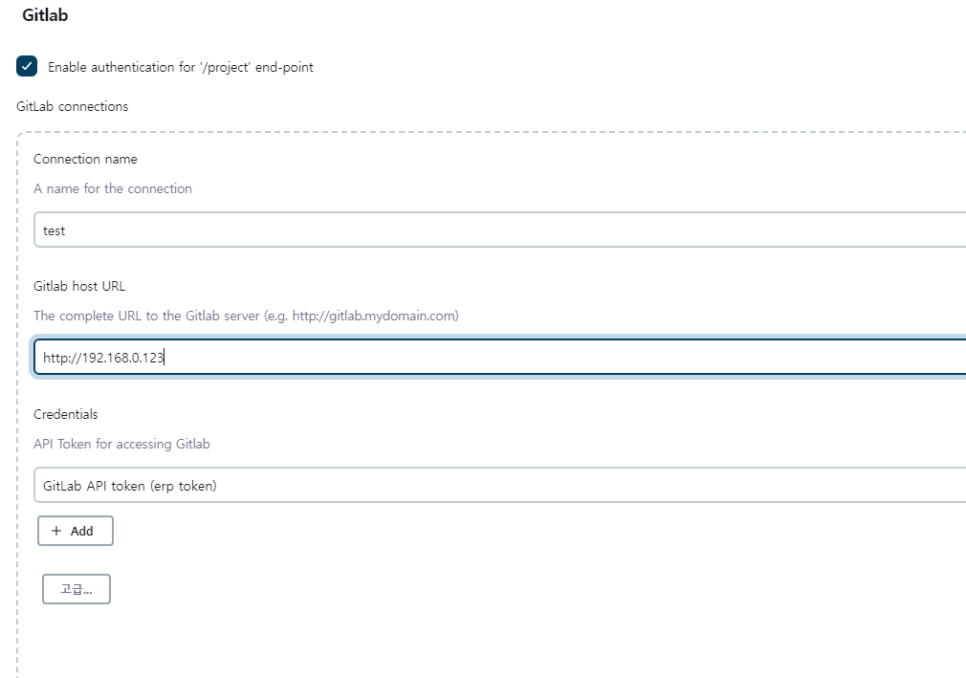
Manage Jenkins → System → GitLab → enter the GitLab host IP → Credentials → select the GitLab API token → Test connection.
Create a pipeline
Create a pipeline named test_pipeline:
- Manage Jenkins → New Item → Pipeline
- Select the GitLab connection you created
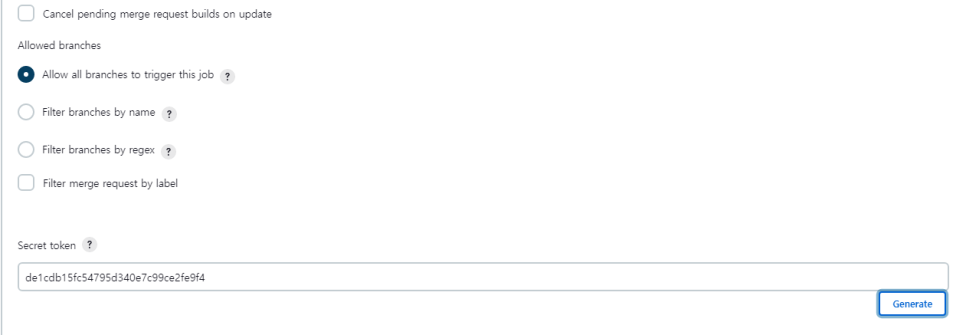
- Build Triggers → check Build when a change is pushed to GitLab. GitLab webhook URL example:
http://HOST_IP:8888/project/test - Advanced → Secret token → Generate (example:
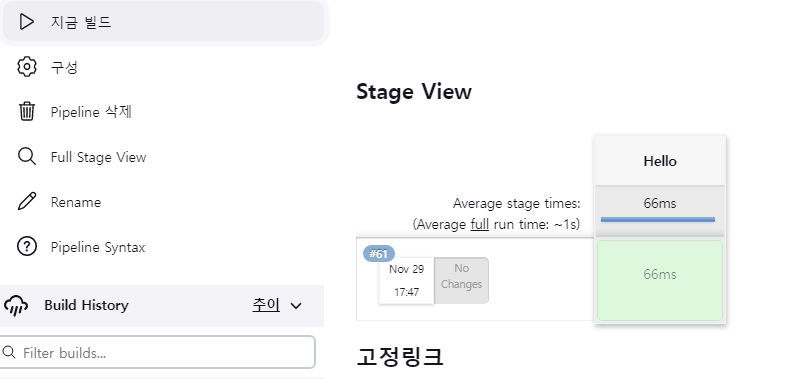
bd4ac97175546df0) - Pipeline → Pipeline script → try sample pipeline → Hello World → Save
GitLab webhook settings (2)
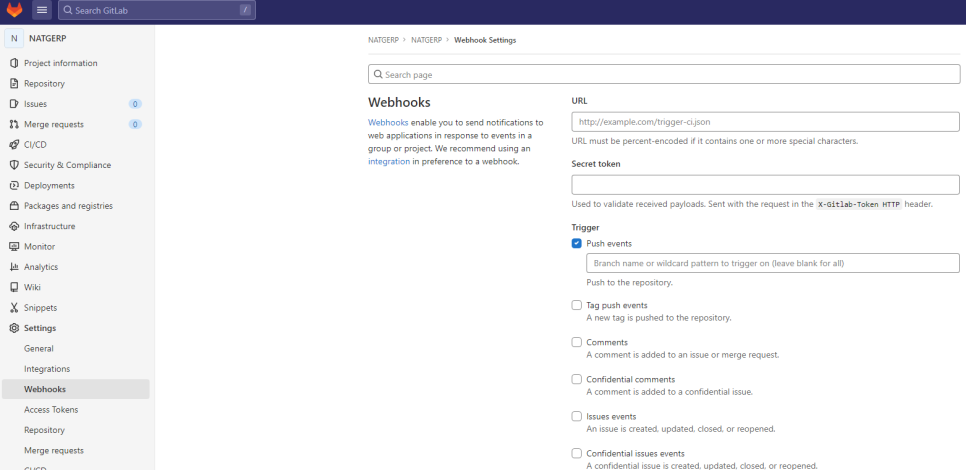
Admin page → Projects → Settings → Webhooks:
- URL:
http://HOST_IP:8888/project/test - Secret token:
bd4ac97175546df0 - Under Push events, enter
devin the branch filter box - Enable Enable SSL verification
- Save → Test → Push events
Leave a Reply