When should you read this?
SourceTree (or git over HTTPS in a terminal) rejects your GitHub website password, while Desktop or the website still work. Or a repo just went private and pushes started failing with authentication errors. If you signed into GitHub Desktop or VS Code through a browser window and never created a personal access token, that still makes sense. Those apps often fetch a token in the background. You used Git. You just never saw the word PAT.
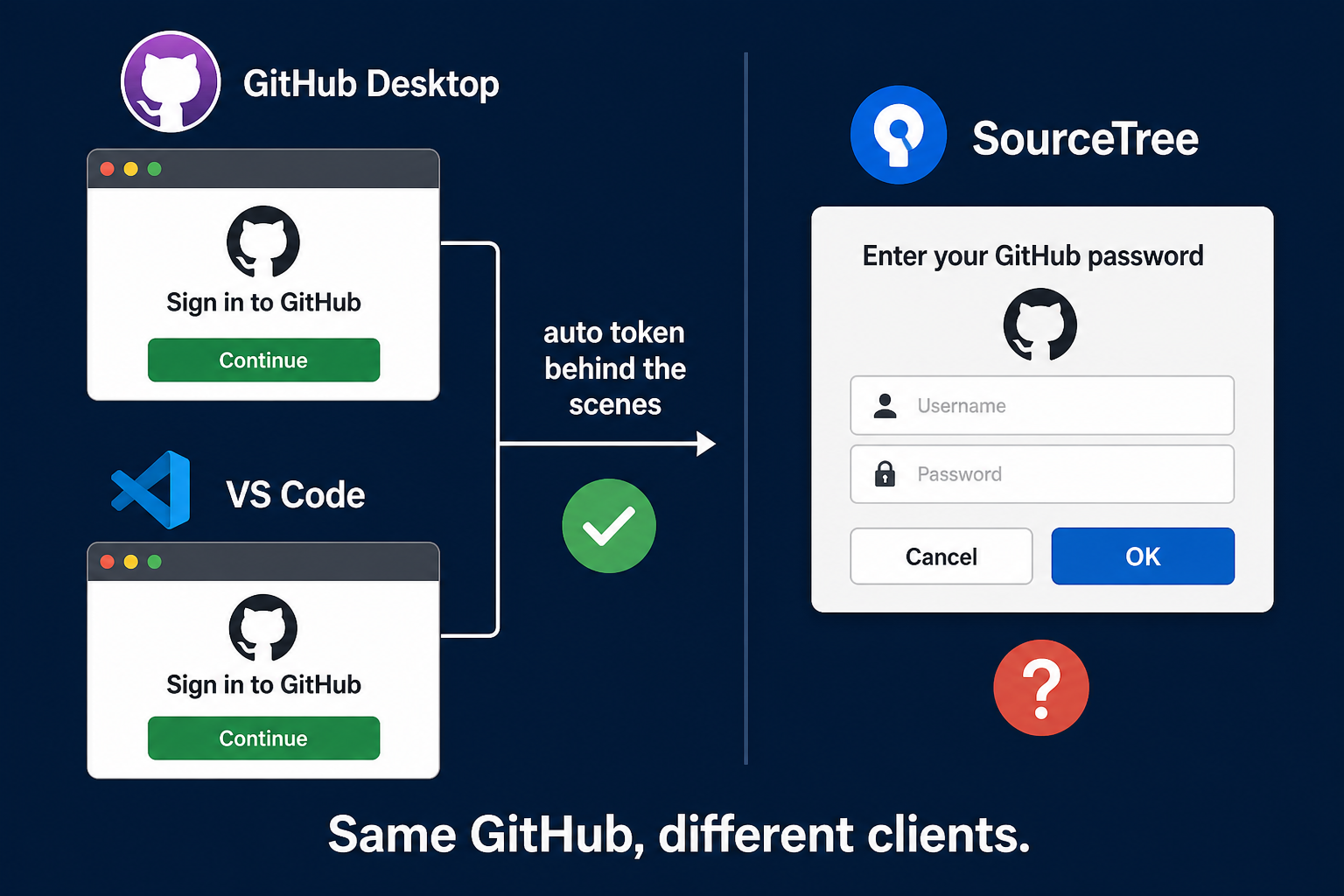
SourceTree, the terminal, and CI are different. When the password box appears and your website password fails, the hidden rule shows up: GitHub does not accept your account password for Git over HTTPS.
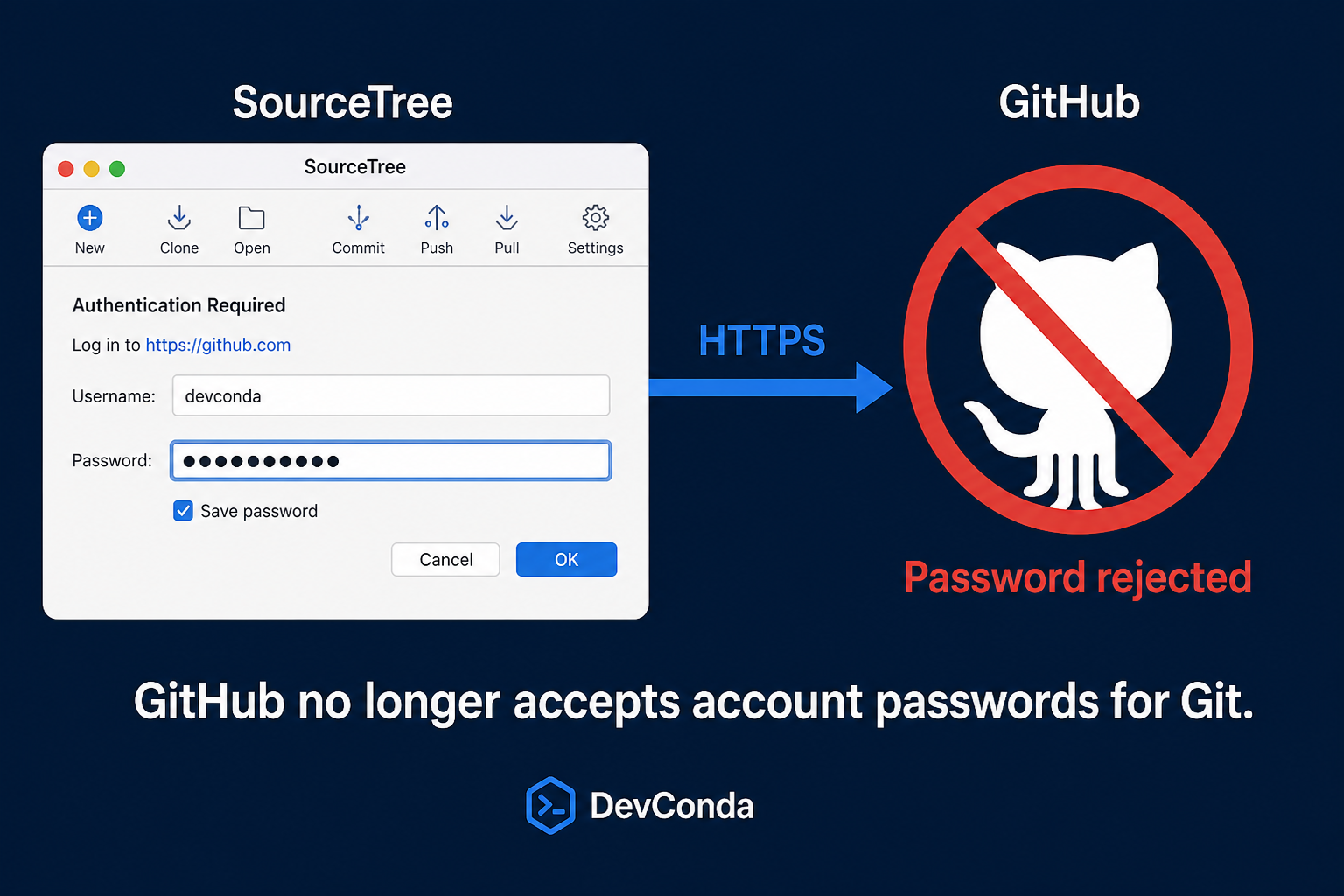
Why GitHub pushes tokens instead of passwords
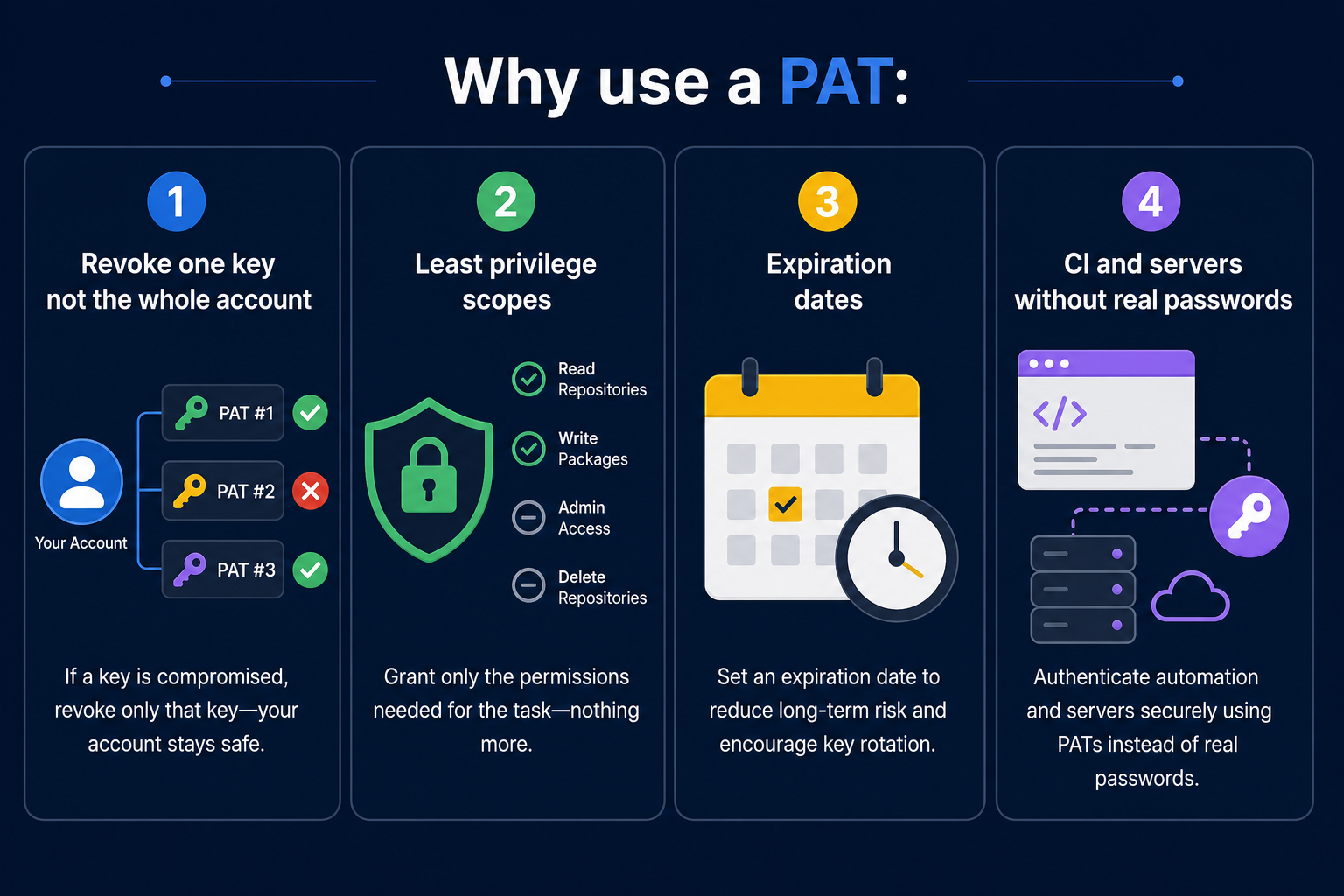
1) Protect the one account password
One password unlocks the whole account. If it leaks from a terminal or a random client, you are in trouble. A token is closer to a disposable key. Revoke that token and the account can stay intact.
2) Least privilege
A password login is broad. A PAT can be limited – read-only on one repo, or push only where you need it. Fine-grained tokens fit this better than a wide classic token.
3) Expiration
You can force 30 or 90 days. Forgotten forever-keys are how quiet incidents start. Do not create a classic PAT with no expiration for convenience – set a reminder, rotate on expiry, and revoke tokens you no longer use. No-expiry tokens in laptops and Jenkins credentials stores are a recurring audit finding.
4) Automation
A deploy server should not store your real GitHub password. CI needs a token or deploy key – same idea as Jenkins on a private repo.
So Desktop/VS Code often hide the "why." SourceTree surfaces it when HTTPS auth breaks.
When this post helps
- HTTPS remote and authentication failed
- messages about removed password authentication
- website or Desktop works, SourceTree push does not
- it broke after the repo went private
Fix in order
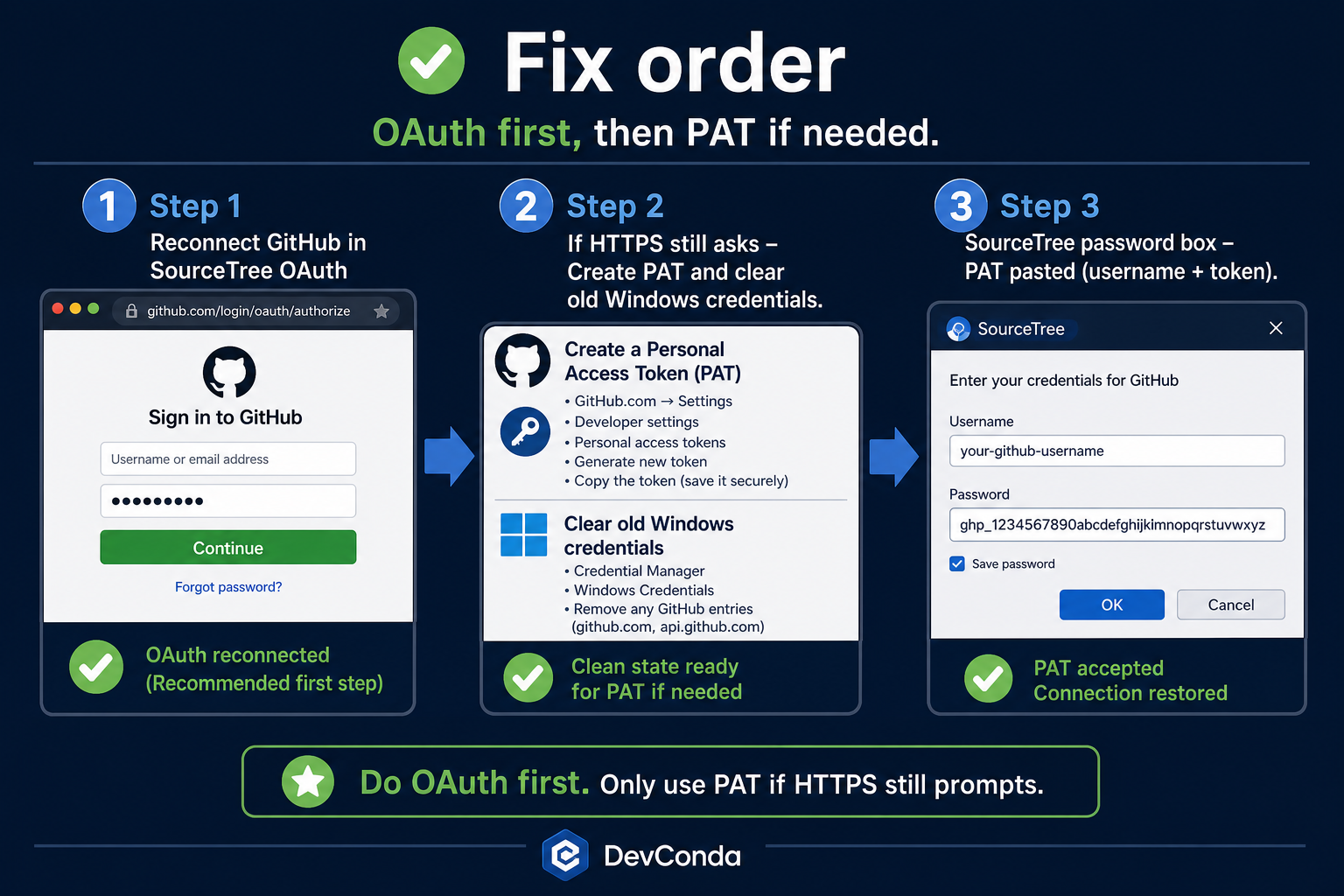
1) Reconnect GitHub in SourceTree (OAuth) first
Tools -> Options -> Authentication. Remove the broken account, add GitHub again, finish the browser login.
2) If HTTPS still asks for a password, put a PAT in that box
Username = GitHub username. Password = the token. Create a token under Settings -> Developer settings -> Personal access tokens. Classic with repo is a common day-one fix; add user:email if account login still fails. Prefer fine-grained when you can, scoped to the one org/repo and with an expiry date. Clear stale git:https://github.com entries in Windows Credential Manager if an old password keeps winning – SourceTree will keep replaying the cached secret until you delete it.
Treat the PAT like a password: paste it once into the credential prompt, never commit it, never paste it into a ticket. If it leaked in chat history, revoke it in GitHub immediately and create a new one.
3) Use SSH if your team already runs on keys
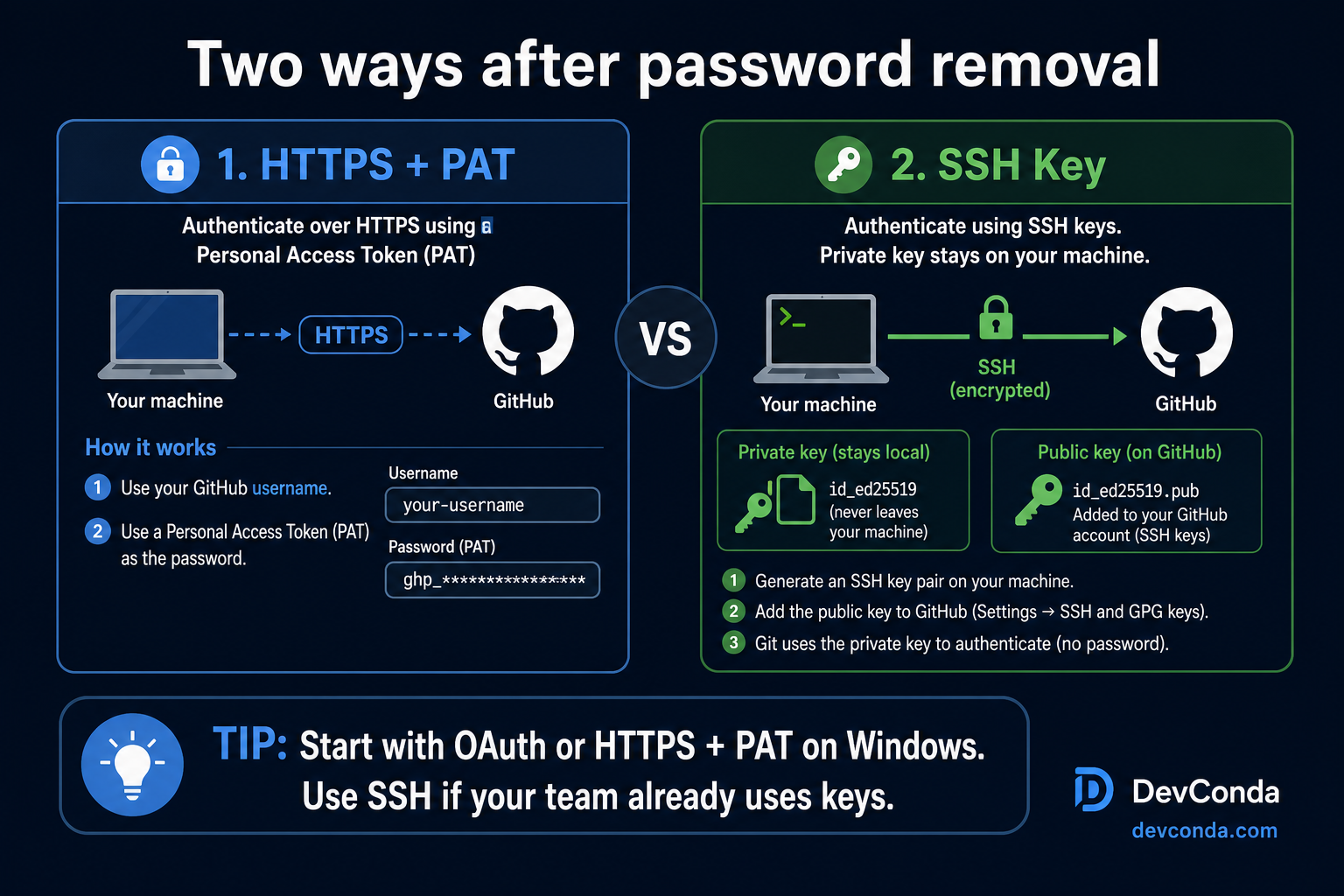
Switch the remote to git@github.com:ORG/REPO.git and register the public key. That path does not use a PAT. Generate the key on the same Windows account that launches SourceTree, add the public half in GitHub SSH keys, and test with ssh -T git@github.com before you change remotes in the UI.
SSO and org restrictions
If the repo sits under a company org with SAML SSO, a PAT or SSH key can authenticate to GitHub.com and still fail on that org until you authorize the token or key for SSO. In the GitHub UI, open the token (or SSH key) and click Authorize next to the org. SourceTree error text often looks identical to a bad password, so check SSO before you mint a second PAT.
Fine-grained tokens must include the repository and the Contents (and Metadata) permissions you actually need to push. A read-only fine-grained token reproduces the same “auth failed” symptom as an expired classic token. When in doubt, create a short-lived classic repo token to unblock the day, then replace it with a narrower fine-grained token once push works.
Multiple GitHub accounts on one laptop are another trap. Credential Manager may keep returning the personal account token while SourceTree is trying to push to a work remote. Separate Windows users, or explicitly manage credentials per host alias, beat “delete everything and hope.”
Verify
- Fetch/push from SourceTree without the password error.
- GitHub -> Settings -> PAT list shows the new token last-used after a push.
- Credential Manager no longer stores a naked account password for
git:https://github.com. - If you moved to SSH,
ssh -T git@github.comsucceeds under the same Windows user that runs SourceTree.
Minimal checklist
- Know the symptom: website password is not a Git HTTPS password.
- Try OAuth reconnect in SourceTree before minting a wide classic PAT.
- If you use a PAT: scoped, expiring, stored only in the credential helper – never no-expiry “so I forget less.”
- SSH is fine when the team already standardizes on keys.

Leave a Reply