This walkthrough installs Docker on a CentOS EC2 instance and runs a web server inside a container.
Remove old Docker packages
If any older Docker packages are present, remove them first so they do not conflict with Docker CE:
sudo yum remove -y docker \
  docker-client \
  docker-client-latest \
  docker-common \
  docker-latest \
  docker-latest-logrotate \
  docker-logrotate \
  docker-engine
Add the Docker repository and install Docker CE
Install yum-utils, add the official Docker repo, then install Docker CE 20.10.7:
sudo yum install -y yum-utils
sudo yum-config-manager --add-repo https://download.docker.com/linux/centos/docker-ce.repo
sudo yum install -y docker-ce-20.10.7 docker-ce-cli-20.10.7 containerd.io
Start Docker and enable it on boot:
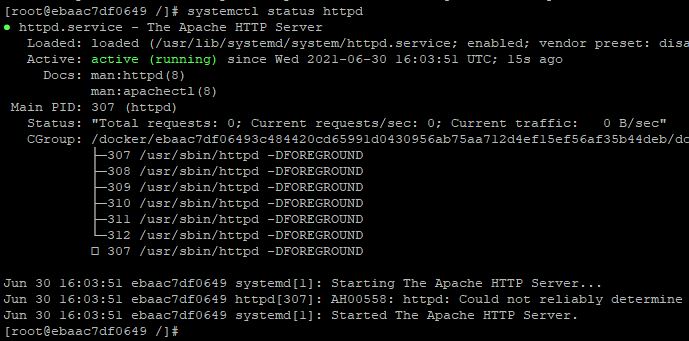
sudo systemctl enable --now docker
sudo systemctl status docker
sudo docker version
Pull CentOS and run a container
Pull a CentOS image and run a container named centos8, publishing host ports 8080 and 3307 for the web server and MySQL that will come later:
sudo docker pull centos
sudo docker run -itd \
  --name centos8 \
  --privileged \
  -p 8080:8080 \
  -p 3307:3307 \
  centos /bin/bash
Attach a shell to the running container:
sudo docker exec -it centos8 /bin/bashInstall Apache (httpd) in the container
yum install -y httpd
httpd -v
Change the Listen directive so Apache binds on all interfaces on port 8080 (matching the published Docker port):
# /etc/httpd/conf/httpd.conf
Listen 0.0.0.0:8080
Start httpd:
httpd -k start
# or, if systemd is available in the container:
# systemctl start httpd
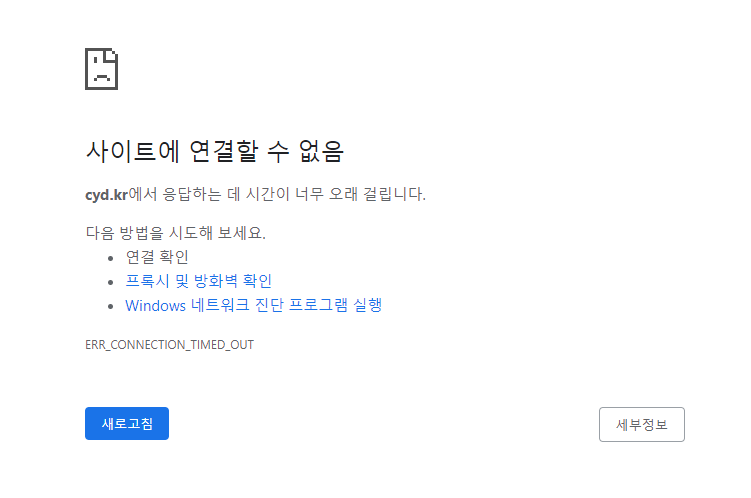
From a browser, try http://<ec2-public-ip>:8080/. If the page does not load yet, that is expected when the AWS security group or OS firewall still blocks 8080.
Firewall and security-group rules are still required before the site is reachable from the internet. The next post covers opening those ports and installing PHP and MySQL on this same Docker setup.
Leave a Reply